


The My Work feature in monday.com promises a centralized view of all your tasks across multiple boards. The concept is solid: see everything you need to do today in one place, organized by date, status, or board.
But here’s the problem: My Work comes with limitations that can hold your team back.
You’re restricted to viewing only specific column types (date, status, priority, and people). Need to see a dropdown column, numbers column, or AI column? You’re out of luck. You also can’t reorder columns or customize the view to match how your team actually works.
If you’re feeling constricted by these limitations, you’re not alone. Let’s explore three alternatives that give you the flexibility My Work lacks.
Want to watch a tutorial of this process? Check this video below:

Alternative 1: Dashboard with Table View Widget
The first solution uses the dashboard functionality with a Table View widget. This approach gives you more control over what you see and how you see it.
How to Set It up
01: Create Your Dashboard
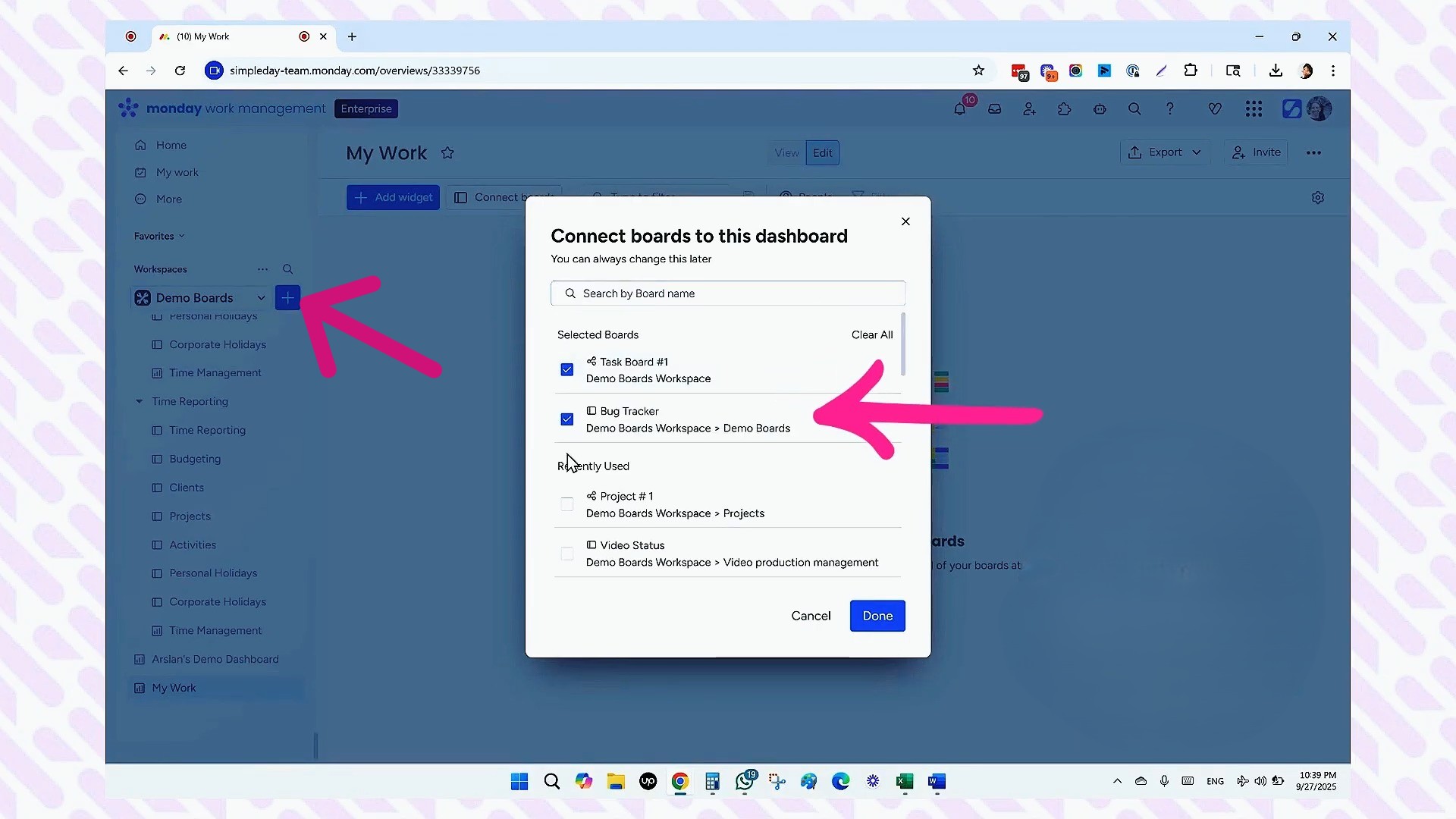
- Click the blue plus button beside the “Demo Board” option on the left panel in your workspace
- Select “Create dashboard”
- Name it (for example, “My Work”)
- Choose which boards to connect (these are the boards where your tasks live)
02: Add the Table View Widget
- Click “Add your first widget”
- Select “More widgets”
- Search for “Table” and add the widget
03: Customize Your Columns
Click the three dots on your widget and select “Settings.” You can now choose which columns to display for each board individually. For example:
- On your Task Board, you might want to see: name, people, status, and client
- On your Bug Tracker, you might want: name, due date, customer impact, and description
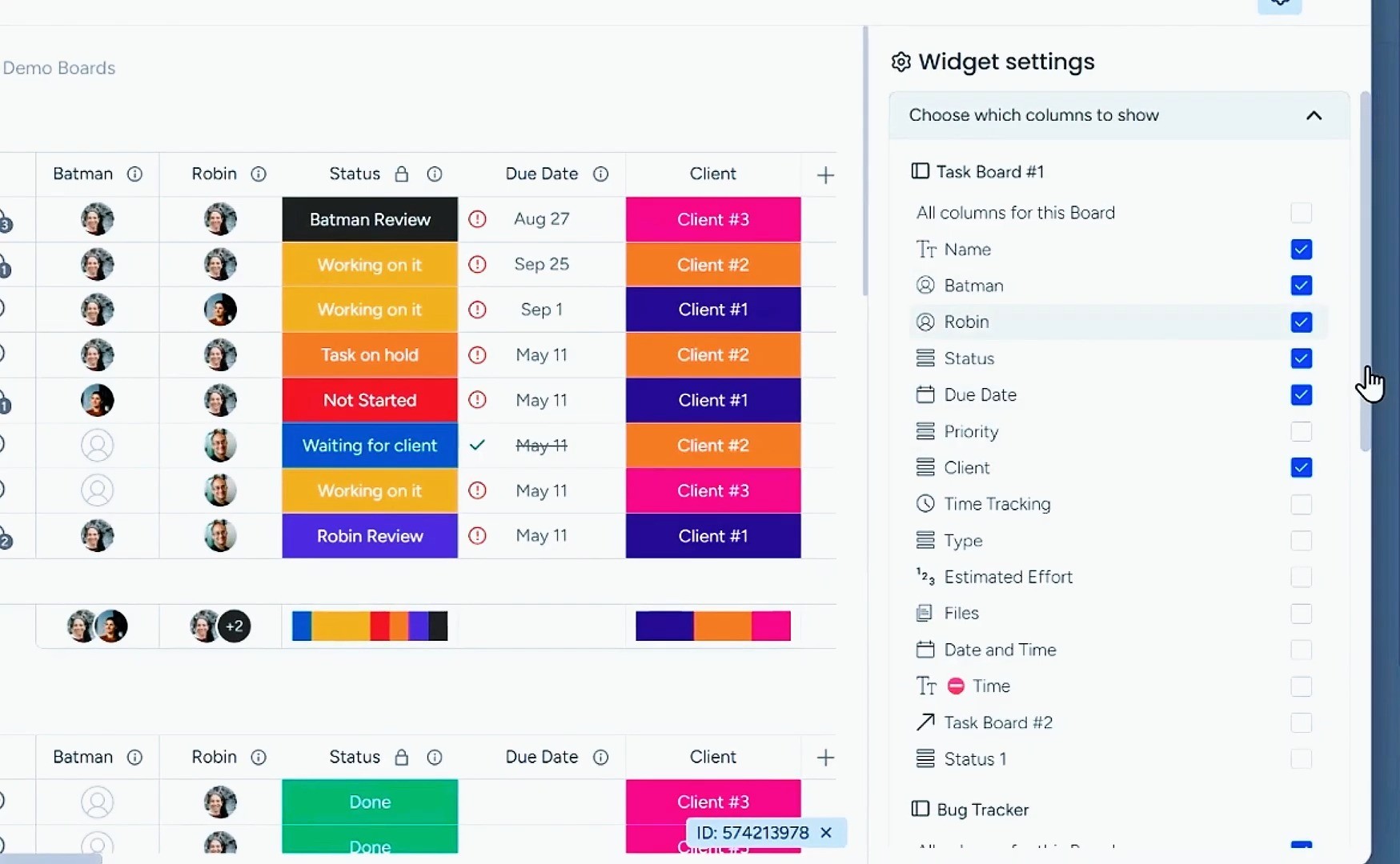
The advantage here is flexibility. Different boards require different information, and this setup can provide that.
04: Apply Filters
Unlike My Work, Table View offers complex filtering options. You can filter by group, status, or any other column to focus on what matters.
For instance, if you only want to see open bugs, you can filter your Bug Tracker to show only items where the group is “Open Bugs.”
Key Advantages
- Choose different columns for different boards
- Apply complex filters beyond what My Work offers
- See all your boards in one dashboard
- Option to separate boards into individual widgets if needed
When This Works Best
This solution is perfect if you need to see different information from different boards and want more control over filtering. One of our clients used this setup for their coaching seminars, combining feedback surveys with daily tasks in a single dashboard.
Alternative 2: Dashboard with List View Widget
The List View widget is a newer addition to monday.com’s widget center, and it takes everything good about Table View and improves on it.
How to Set It up
01: Create Your Dashboard
Follow the same process as Alternative 1 (create dashboard, connect your boards).
02: Add the List View Widget
- Click “Add your first widget”
- Select “More widgets”
- Search for “List” and add the widget
03: Configure Your View
Click on the settings (three dots) to access configuration options.
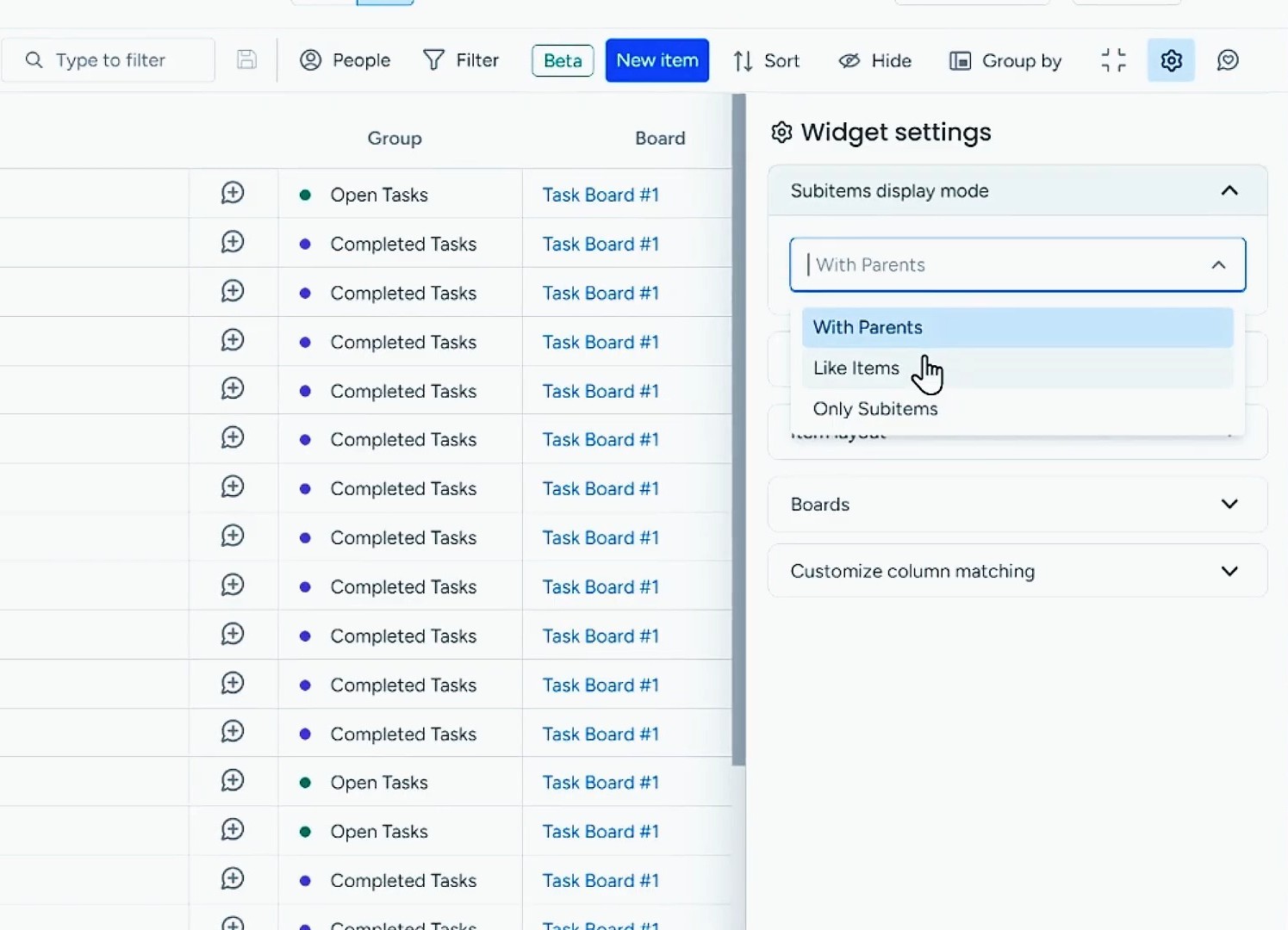
Subitem Display Options: You can view subitems with their parent items (hierarchical view), as equal items (flattened view), and only subitems (isolate subtasks). This subitem flexibility doesn’t exist in My Work at all.
Column Selection and Ordering: You can not only choose which columns to display, but you can also reorder them by dragging and dropping. Want to see the status before the date? Done. Need to hide the group column? Just uncheck it.
Column Matching: Monday.com automatically matches similar columns across boards (like matching “Status” columns from different boards).
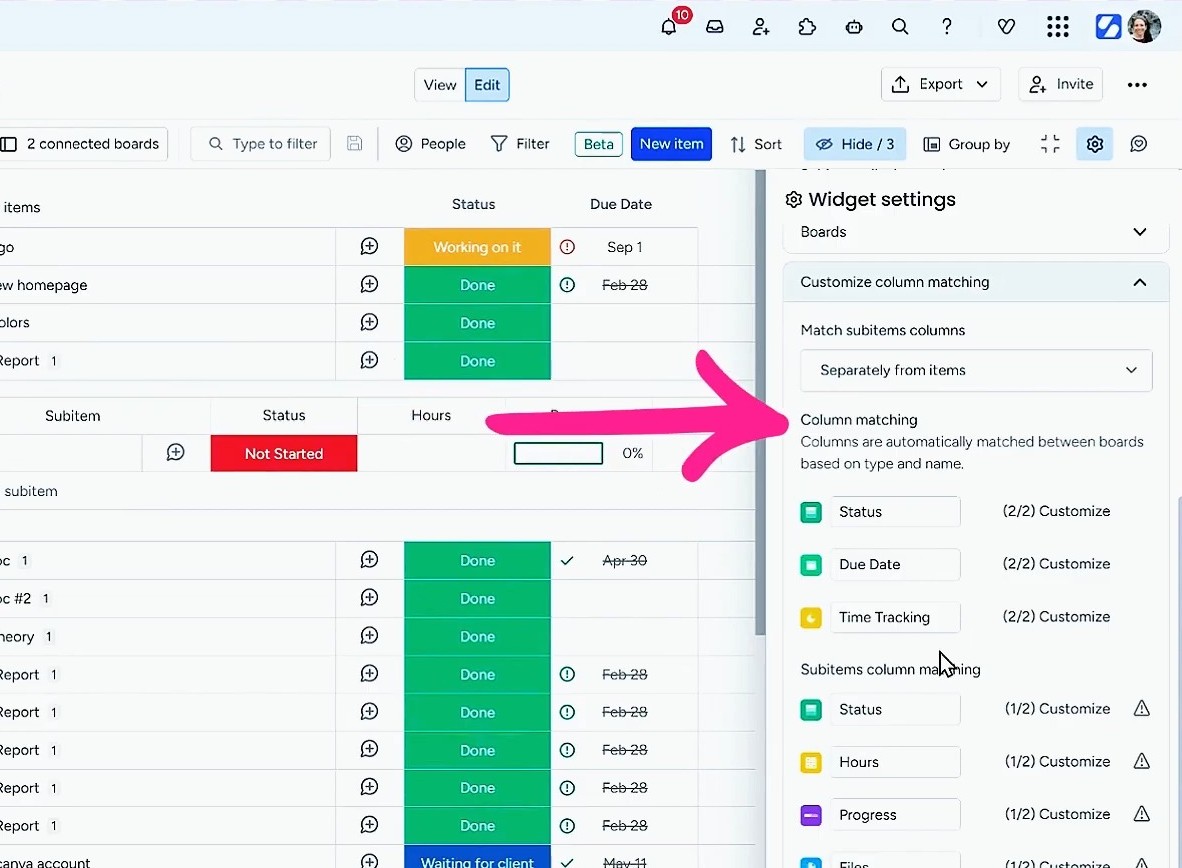
But you can override this if needed. For example, you could match the Task Board’s “Status” column with the Bug Tracker’s “Source” column if that makes sense for your workflow. You can also do this on a sub-item level.
Item Layout: Adjust the height of items to control information density, so you see more tasks at once or give each task more breathing room.
Key Advantages
- Everything from Table View, plus more
- Reorder columns by dragging and dropping
- Better subitem handling with three display modes
- Add new items directly from the widget
- Group By feature for organizing information (by board, status, or due date)
When This Works Best
List View is ideal when you need the most flexibility in a native monday solution. There is a Group By feature that makes it easy to switch between different organizational views without creating multiple dashboards.
Alternative 3: Make.com Integration (Advanced)
This solution is more complex but offers the ultimate flexibility. It uses Make.com (formerly Integromat), a third-party automation tool, to create a unified task board.
How It Works
Instead of viewing tasks across multiple boards, Make.com automatically scans your boards and creates copies of relevant tasks in a single, dedicated board.
The Setup:
- Create a new board (your “unified task board”)
- Add columns that cover all the data you need from your source boards
- Build a Make.com scenario that:
- Scans your source boards (Bug Tracker, Task Board, etc.)
- Identifies tasks due today (or whatever criteria you set)
- Creates or updates corresponding items in your unified board
- Maps all relevant data (priority, customer impact, status, etc.)
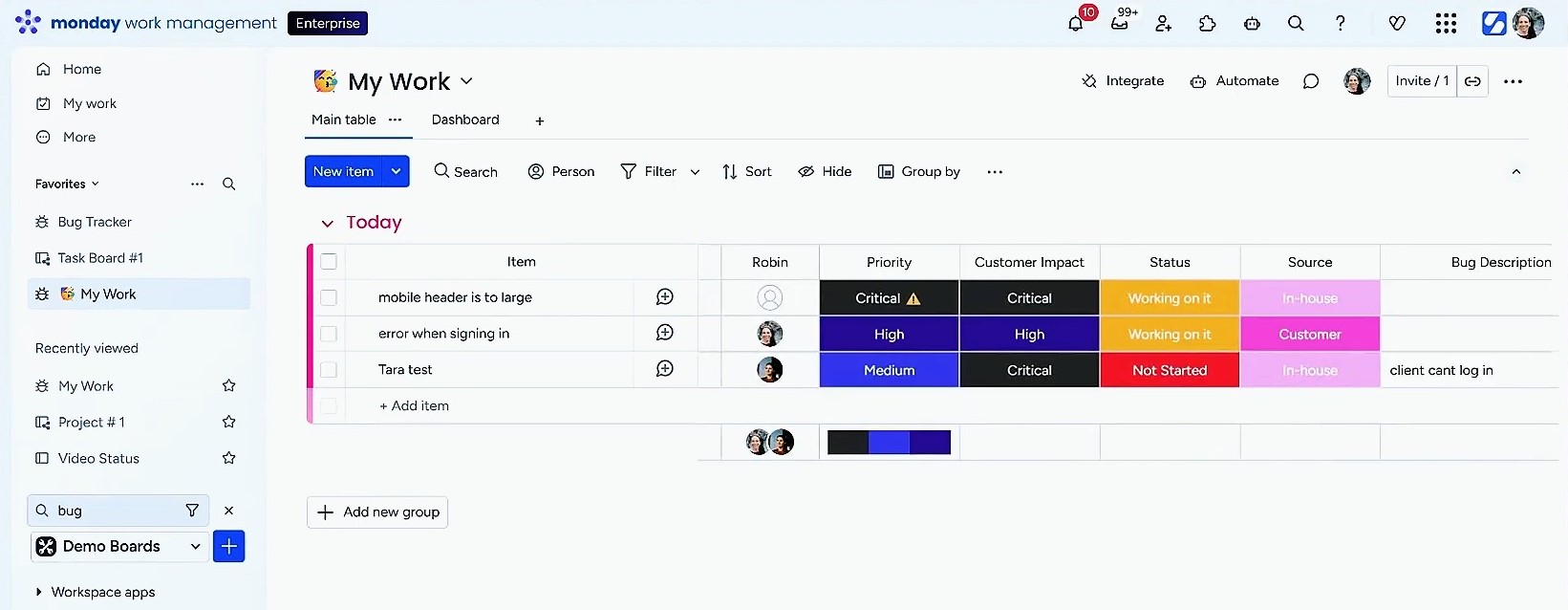
The Result:
You get one board with everything. Every column from every source board can be represented here. The scenario also pulls in metadata like which board and group each task came from.
Key Advantages
- Complete control over which columns appear
- Full filtering and sorting capabilities
- Group By functionality for different views
- Create custom views for different purposes (Bug Tracker view, Task Board view, etc.)
- Optional two-way sync (changing status in the unified board updates the original board)
When This Works Best
This approach works best when you have many boards (though probably not 400 because there are practical limits) or need features that monday’s native tools don’t provide. It’s particularly valuable for teams with a “traffic manager” who needs to see everyone’s tasks across the organization.
This solution requires understanding the interface and logic of Make.com. If you’re not comfortable with automation tools, you may need help setting this up.
Choosing the Right Alternative
Table View if:
- You need different columns for different boards
- You want a quick, native solution
- You don’t need to reorder columns
List View if:
- You need everything from Table View plus more flexibility
- You want to reorder columns
- You need better subitem handling
- You want Group By functionality
Make.com if:
- You need complete customization
- You have complex workflows across many boards
- You’re comfortable with automation tools (or can get help)
- You need two-way sync capability
Ready to Master monday.com?
Struggling to set up these alternatives or want to maximize monday.com for your team? Simpleday specializes in helping businesses understand and implement monday workflows that actually work. We’ll customize your setup to match your processes, not force you into rigid structures. Let’s talk.
