


“Did I set up my boards correctly?”
This is one of the most common questions monday.com users ask. And honestly, it’s the right question to ask because the structure you choose determines how effectively your team will use the platform.
In this tutorial, I’ll walk through the different ways you can structure your boards in, helping you find the setup that fits your business.
Prefer watching over reading? Check out the full video tutorial here:

Before You Build: The Planning Phase
What’s the most common mistake that many monday.com users make? They start creating boards without any planning. Don’t do this.
Before creating anything, answer these questions:
01. Why are you using monday.com?
Get clear on your goals. Are you using it as a CRM? To track tasks? To manage projects? Maybe all three? The platform is flexible enough to handle multiple use cases, but you need to define yours first.
02. What information needs to be tracked?
Once you know the “why,” you’ll understand the “what.” If you’re tracking projects, you’ll need project details, associated tasks, budgets, team assignments, and deadlines. Map out what data points matter to your workflow.
03. Who will actually use it?
Think about the different teams, departments, and individuals who’ll interact with the system daily. Consider:
- How tech-savvy are your users?
- How often will they use the tool: daily or occasionally?
- What information does each person need to see?
Many businesses build incredibly complex setups that look impressive but nobody uses. Why? Because the system doesn’t match the skill level or needs of the actual users. Build for your team, not for an ideal scenario.
04. What do you want to get out of it?
Beyond workflows, think about the bigger picture. What KPIs do you want to track? What dashboards would help leadership make decisions? You can get powerful insights from monday, but only if you plan for them.
The Four Structural Options in monday.com
Now let’s get into the actual structures you can use. We’ll start simple and gradually move to more complex setups.
Option 1: One Task Board with Everything
This is the simplest approach, and often the most underrated.
The concept is straightforward, which is putting all your tasks in a single board. Use a dropdown or status column to categorize them by department, project, or any other relevant criteria.
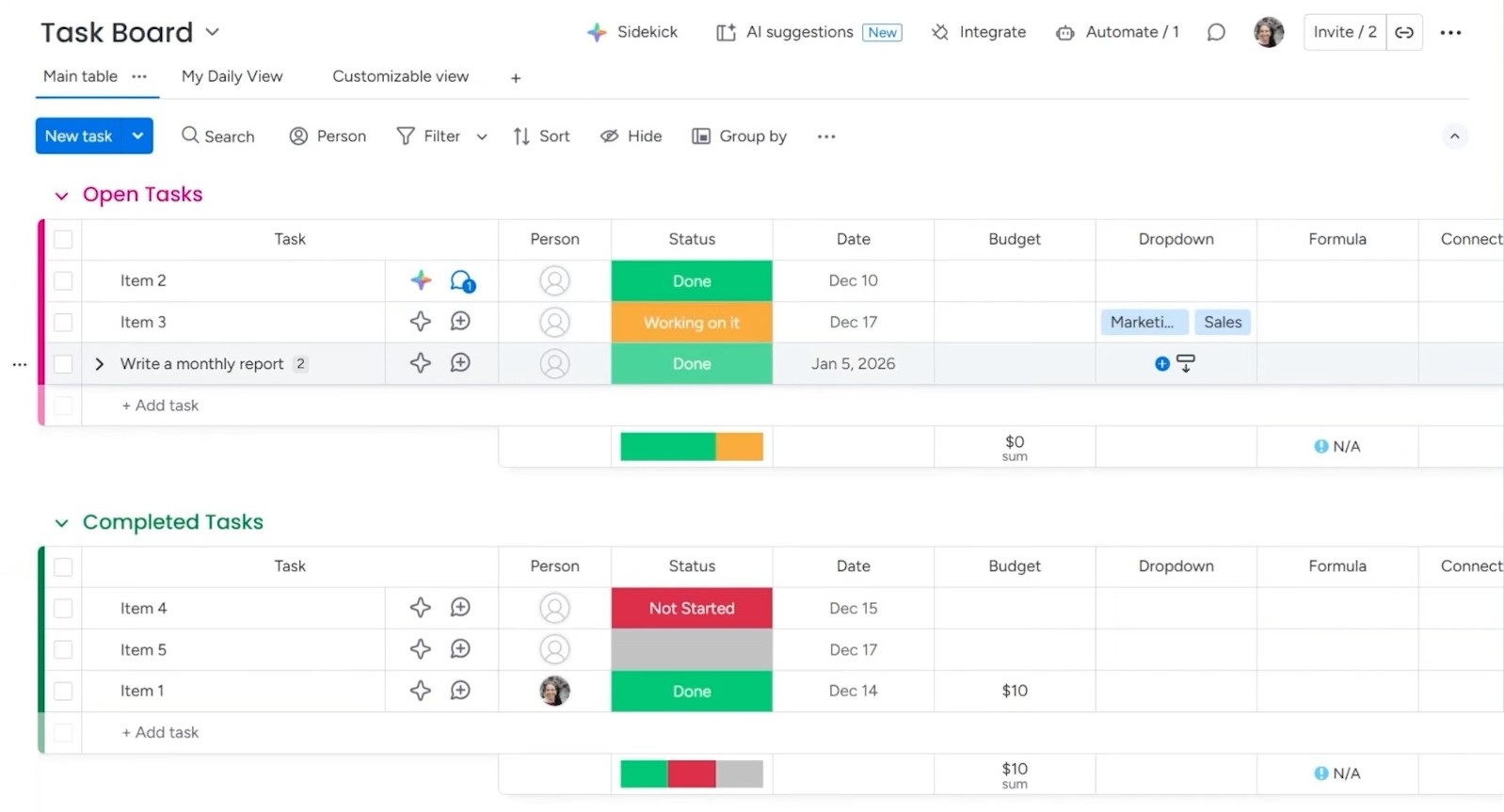
Here’s how it works:
- Create one board for all tasks
- Add a dropdown or status column for categorization (e.g., departments)
- Assign each task to its relevant category
- Use filters to view specific subsets when needed
Why this works:
Many companies overcomplicate things by creating dozens of boards. The result? Nobody can find what they’re looking for. With one task board, everything is there in one place.
This structure isn’t just a glorified to-do list. You can still add automations, integrations, and multiple views, but the foundation remains simple.
When to use this:
- You’re just getting started with monday.com
- Your team primarily manages tasks rather than complex projects
- You want everyone to have visibility into all work
When to consider alternatives:
- You’re tracking budgets or finances (these deserve their own space)
- You need specialized views, like calendars, for specific workflows
- You have entirely separate workflows, like HR onboarding
Option 2: One Board to Track Projects and Sub-Items
This structure adds one layer of organization while keeping everything in a single board. The idea is to use items for projects and sub-items for tasks.
Here’s the setup:
- Each item represents a project (e.g., “Project Number One”)
- Sub-items under each project represent the associated tasks
- All projects and tasks stay in one board
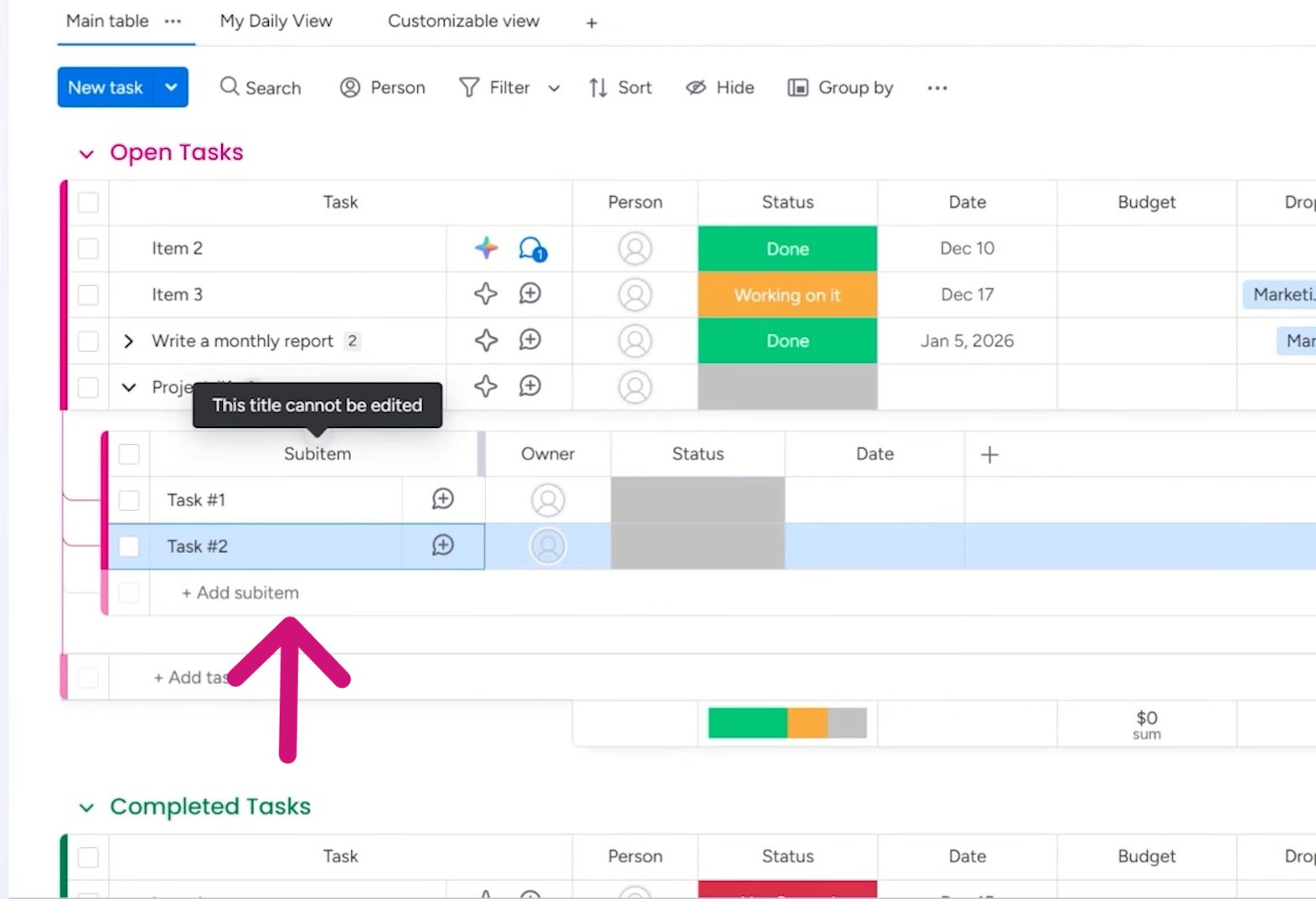
Why this works:
You get a clear hierarchy without the complexity of managing multiple boards. Team members can see exactly which tasks belong to which project, and you can track project progress in one place.
When to use this:
- You’re managing multiple projects with defined tasks
- You want project-level visibility alongside task details
- Your team needs to understand task context at a glance
Option 3: High-Level and Low-Level Boards
Now we’re stepping up in complexity. This structure separates projects from tasks into different boards, but keeps them connected.
High-level board: Shows all your projects with summary information
Low-level board: Contains all the detailed tasks
These boards connect to each other, creating a relationship between projects and their associated work.
You have flexibility here:
- One-to-one: One high-level board connected to one low-level board
- One-to-many: One high-level board connected to multiple low-level boards
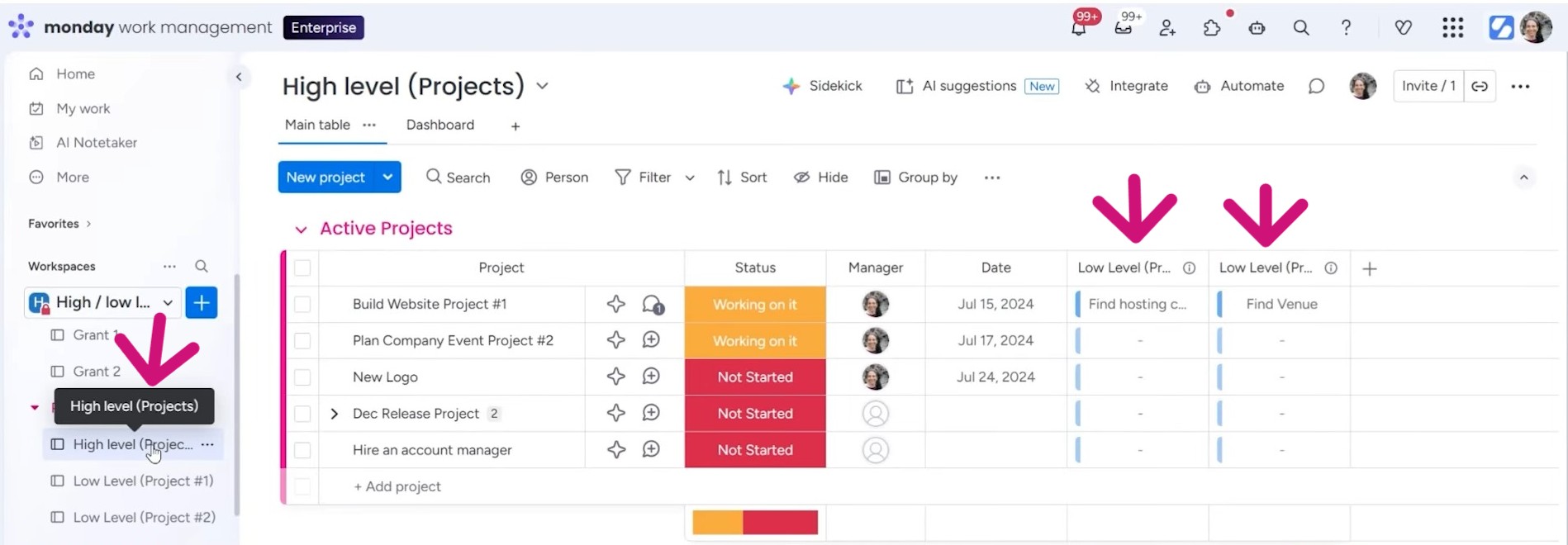
Why this works:
Different people need different views. Managers and executives want the big picture, such as project status, progress, and high-level metrics. They don’t need to see every individual task. Meanwhile, team members working on tasks need detailed boards where they can manage their daily work.
This structure serves both needs without cluttering either view.
Important note on limits:
Your monday.com plan determines how many boards you can connect:
- Pro plan: Up to 20 connected boards
- Enterprise plan: Up to 60 connected boards
(These numbers may change, so verify with current monday documentation.)
When to use this:
- You have distinct audiences (leadership vs. execution teams) with different needs
- You want clean separation between project oversight and task management
Option 4: Portfolio Structure (Enterprise Plan)
This is the most robust option, available on the enterprise plan.
Portfolio is a newer monday.com feature that takes the high-level/low-level concept further. You have one portfolio board showing all your projects, connected to individual boards for each project.
The connection limits are significantly higher, as monday has been expanding this, with plans to eventually support up to 1,000 connected boards.
Why this works:
Some projects are genuinely large enough to warrant their own dedicated board. Think of:
- Real estate companies managing property purchases with hundreds of steps per transaction
- Government contractors working on multi-year projects
- Agencies handling long-term client engagements with extensive deliverables
The portfolio board gives leadership a bird’s-eye view of all projects, while each project board contains everything needed to execute that specific work.
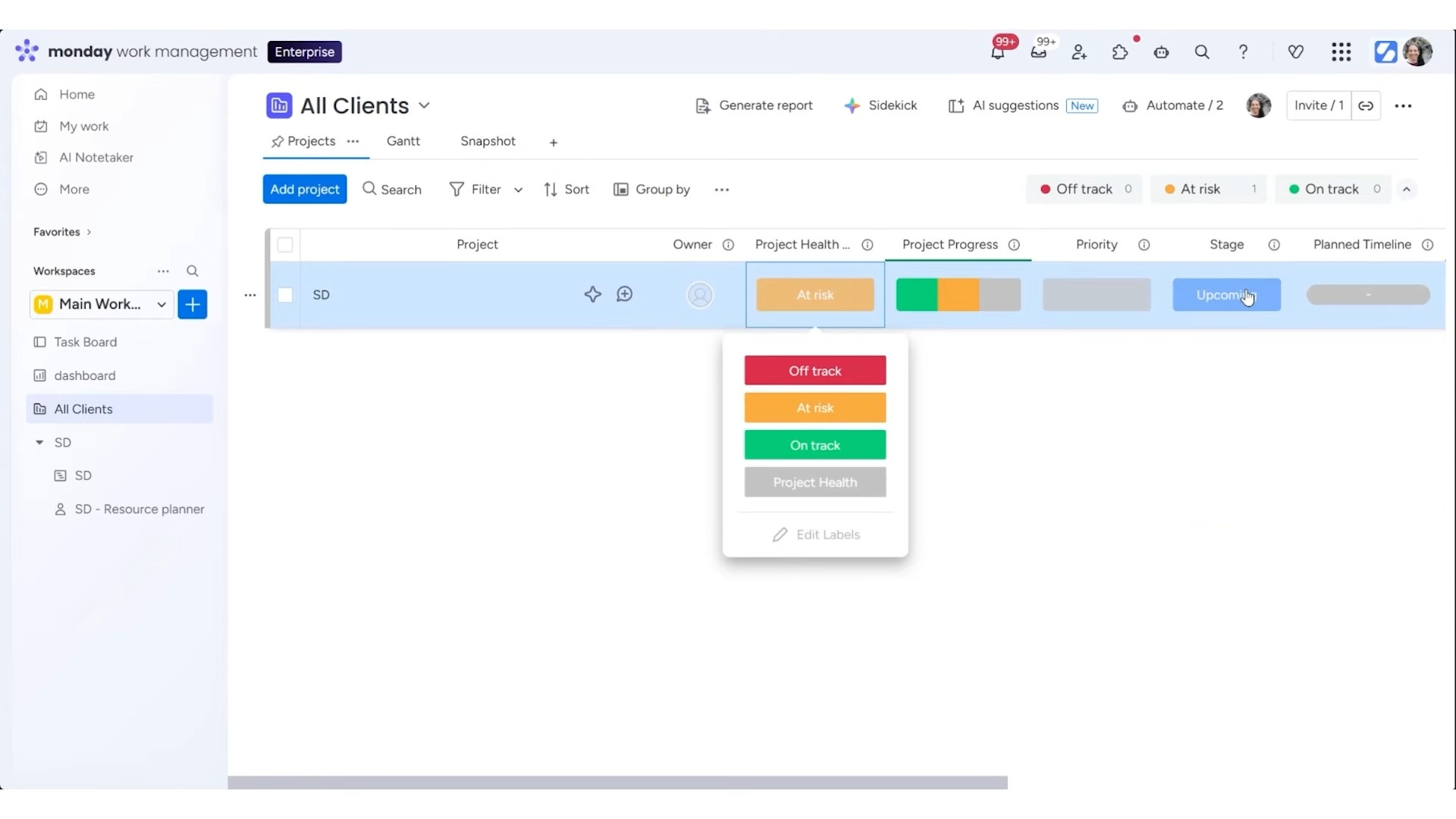
You must keep in mind that creating a separate board for every client or every project sounds organized but often backfires. When tasks are scattered across dozens of boards, people can’t find what they need to work on today.
So, this structure isn’t for everyone. In fact, it’s probably not for most users.
Use this structure when:
- You have genuinely large, complex, long-running projects
- Each project has enough steps and complexity to justify its own board
Final Thoughts
Structure in monday isn’t about finding the “perfect” setup. It’s about finding the right fit for how your team works.
The best structure is one that:
- Your team members actually use every day
- Makes finding tasks easy
- Gives leadership the visibility they need
- Grows with your organization
Take time to plan before you build. Understand your options. And don’t be afraid to start simple.
Ready to build a monday.com structure that actually works for your team? Simpleday helps businesses design and implement workflows tailored to their specific needs. Skip the trial and error, get a system your team will actually use. Get in touch today.
