


Microsoft Power Automate is a monday.com app that lets you build automated workflows between monday.com and the Microsoft ecosystem, using Microsoft Power Automate as the workflow engine. It’s designed for teams already living inside Microsoft tools who want their monday.com boards to become a meaningful extension of the Microsoft tech stack.
Rather than having Microsoft users rely on standalone integration platforms such as Zapier or Make to connect to monday.com, you can use Microsoft Power Automate as both a trigger source and an action destination. That means you can start a workflow from a monday.com event (like an item being created or a column changing) and have Power Automate take the action forward automatically.
Common applications include updating Excel files, posting in Teams channels, sending Outlook emails, creating SharePoint documents, or connecting to any of the hundreds of other services Power Automate supports. The app removes one of the most common frustrations with monday.com– the constant back-and-forth between monday.com and their Excel templates, Teams channels, and SharePoint files.
Standout Features
Here’s what stood out most during this Power Automate review and our testing of the app in various use cases.
1. Native Triggers and Actions Inside Power Automate
Once you install the app in monday.com and connect it to your Power Automate account, monday.com shows up as a native option in the Power Automate trigger and action libraries. You can search for “monday.com” when building any flow and get the full set of options, including:
Triggers
- When an item is created
- When a column changes
- When an item’s status changes
- When a subitem is added
Actions
- Create a new item
- Update column values
- Create a board or group
- Add updates or files
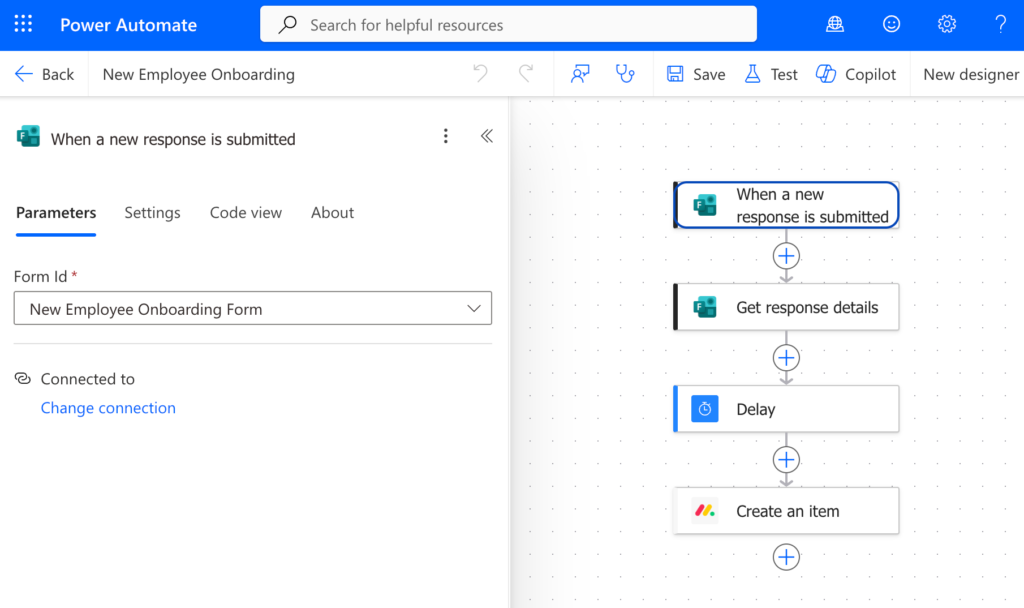
This tight integration is what makes the app genuinely useful. You’re not stitching together webhooks or fighting with API calls. Power Automate treats monday.com as an equal alongside every Microsoft tool. It’s a small difference that feels giant.
2. Deep Access to the Microsoft Ecosystem
The real power of this app is what happens on the Power Automate side. Because Power Automate connects to the full Microsoft stack (plus hundreds of third-party services), your monday.com workflows can trigger:
- Excel file duplication, row insertion, and template population
- Teams messages posted to specific channels
- Outlook emails sent from a shared or personal inbox
- SharePoint file creation and permission management
- Word document generation from templates
- OneDrive file organization
- Dynamics CRM record updates
For teams already invested in Microsoft, this is dramatically more capable than building similar workflows with Make or Zapier. Instead of paying for a middleman, Power Automate becomes your workflow engine, and the Microsoft integrations are native. We’ve built a lot of implementations at Simpleday using Make (see our monday.com automations services for details), and Power Automate is a very easy tool to use, especially for non-technical users. The workflow builder is more visual, the setup is faster, and the learning curve is shorter.
How Microsoft Power Automate by Plugin Genie Works
Setting up the app is straightforward, and Plugin Genie’s documentation is clear and easy to follow. Here’s the process:
- Install the Microsoft Power Automate app from Plugin Genie in the monday.com app marketplace. You’ll get a 14-day free trial to test it out.
- Set up a Microsoft Power Automate premium account (if you don’t already have one).
- Inside Power Automate, go to “More” then “Connections” and search for monday.com to add a new connection. The setup takes just a few minutes, and Plugin Genie’s instructions walk you through every step.
- Once connected, go to “My Flows” and click “New Flow” to start building. Every flow has two parts: a trigger (what starts the workflow) and one or more actions (what happens next).
- Search for “monday.com” in the trigger library to see all available monday.com triggers. Configure the trigger with your board, column, and specific conditions.
- Add actions from any of the Microsoft or third-party services Power Automate supports. You can stack multiple actions together to build multi-step workflows.
- Test the flow, then save and activate. Power Automate will run the workflow automatically whenever the trigger fires in monday.com.
Real Client Use Case: Automating Construction Proposals
One of the most common use cases we’ve built with this app is for construction clients. Construction teams often use monday.com to track their sales pipeline but rely on complex Excel templates for their actual proposals.
The manual process looks like this:
- New opportunity gets added to monday.com
- Team member duplicates the Excel proposal template
- Team member fills in the client details, project scope, pricing, and other information from monday.com
- Team member emails or shares the completed proposal
We built a Power Automate flow that automates the entire handoff. Here’s what it does:
- Trigger: When a new item is created on the “PG Construction” board in monday.com
- Action 1: Copy the Excel proposal template to a new file, named after the item
- Action 2: Populate the new Excel file with the item’s details (client name, project, dates, notes) pulled directly from monday.com
- Action 3: Post a message in a specific Microsoft Teams channel with a link to the newly created proposal, so the sales team knows it’s ready
The whole workflow runs in seconds. What used to take 15-30 minutes of manual copying now happens automatically the moment a new project is added to monday.com.
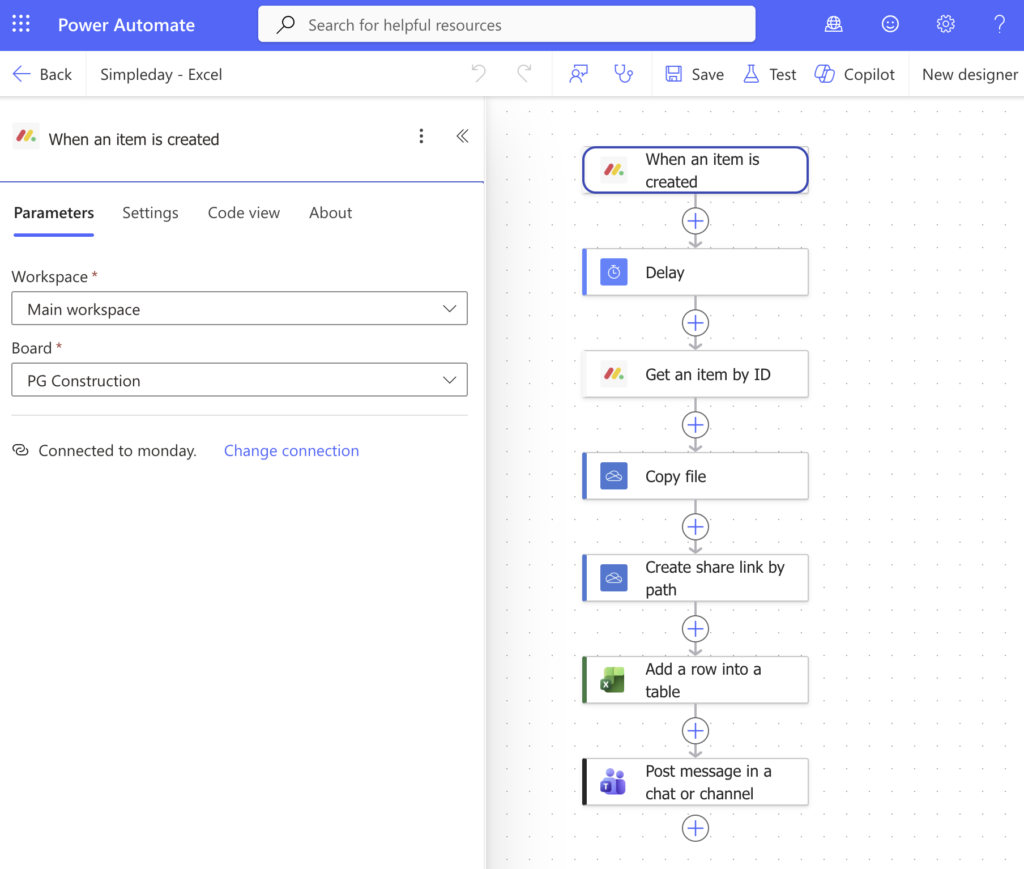
This is exactly the kind of use case where Power Automate excels (pun intended). With the right setup, Microsoft integrations become native and reliable.
Pros and Cons
Pros:
- Native integration with the full Microsoft ecosystem (Excel, Teams, Outlook, SharePoint, Dynamics, etc.)
- Easier to learn and build in than Make or Zapier for most users
- Two-directional workflows: monday.com can both trigger and receive updates
- Well-documented setup, with Plugin Genie’s instructions cutting most implementations down to minutes
- 14-day free trial to test before committing
Cons:
- Requires a Microsoft Power Automate premium account (an additional cost beyond monday.com and the Plugin Genie app)
- Relevant only for Microsoft users
- The learning curve on Power Automate itself is real, even though it’s gentler than Make or Zapier
Use Cases & Best Practices
Microsoft Power Automate by Plugin Genie is most valuable for teams already living in the Microsoft ecosystem. Fortunately, many industries are known to prefer Microsoft over the Google suite, including healthcare companies, legal firms, government entities, construction companies, and financial institutions. Here are the use cases where we’ve seen it deliver the most value:
- Sales and Proposals: Auto-generate proposals in Excel or Word templates when new deals are added to your monday.com pipeline
- Project Management: Trigger Teams channel notifications, calendar events, or SharePoint document creation when project status changes in monday.com
- Construction and Field Ops: Automate the handoff between monday.com project tracking and Excel-based estimating, scope, and change order templates
- HR and Onboarding: Trigger Outlook workflows, SharePoint document creation, and Teams notifications when a new hire is added to a monday.com board
- Client Reporting: Automatically populate Excel reports from monday.com data at scheduled intervals or on specific triggers
Pro Tip: Power Automate flows can be triggered by monday.com column changes with very specific conditions. This means you can build workflows that only run when certain criteria are met (like a status changing to “Approved” AND a specific column being filled in). Use this to avoid over-triggering and keep your flows precise.
Pricing & Availability
Microsoft Power Automate by Plugin Genie is available in the monday.com app marketplace with a 14-day free trial. Pricing scales based on your usage and workspace size. You’ll also need a Microsoft Power Automate premium account to run flows connecting to monday.com, which is sold and priced separately by Microsoft.
For teams already paying for Microsoft 365 with Power Automate included, or those with Power Automate premium licenses, this app is a very cost-effective way to build an efficient monday.com integration without a third-part connector.
Final Thoughts & Recommendations
Microsoft Power Automate by Plugin Genie is a great tool for teams that already live inside the Microsoft ecosystem and want their monday.com boards to be considered part of their Microsoft suite, not an entirely separate tool. It’s especially useful for use cases involving Excel templates, Teams notifications, and SharePoint documents, which are exactly the tools where we see the most manual work among our clients.
If your team is already using monday.com and Power Automate for other workflows, adding monday.com to the mix is one of the highest-ROI integrations you can build.