

And if you rather want to watch a tutorial, check this YouTube video:
Two Ways to Connect: Know Your monday.com Product
Before jumping in, you need to know which product you’re using: Work Management or CRM. The steps are slightly different depending on this.-
- Work Management uses automations to connect Gmail or Outlook.
-
- CRM lets you use automations too, but it also has a shortcut through its email settings.
Method 1: Connect via Automations (Work Management & CRM)
From your dashboard board, click “Automations” or “Integrations” at the top. In this case, they take you to the same place. That’s where you set up email-based triggers and actions. Inside the automation center, scroll through the list or search for Gmail or Outlook. You’ll see a bunch of ready-made automation recipes. Examples include:-
- “When a status changes to X, send an email.”
-
- “When a new item is created, send an email to this address.”
Making Your First Connection (Gmail Example)
To set up Gmail, click on any recipe that includes Gmail. A popup will ask you to connect your Gmail account. Here’s what to do:-
- Click the Gmail icon.
-
- Select the Google account you want to connect to.
-
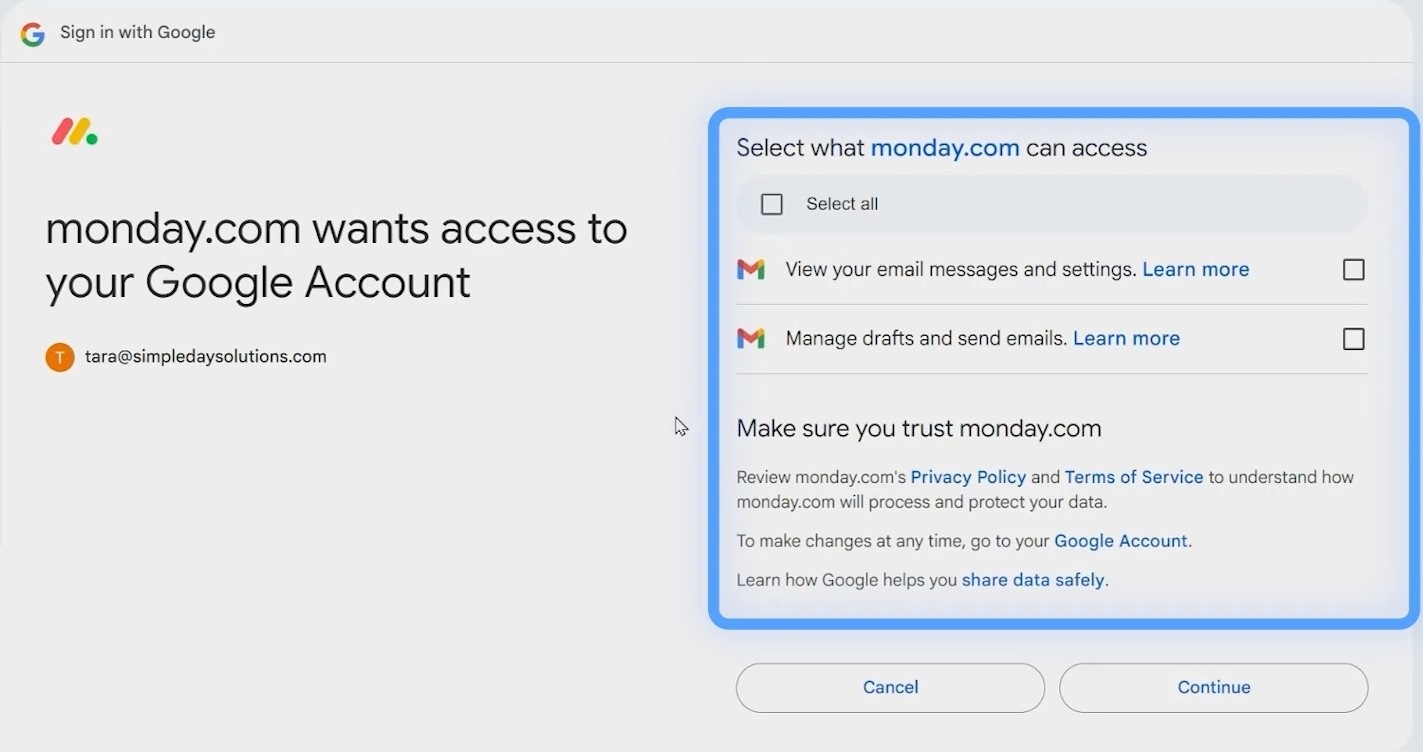
- A permissions window appears. Click “Select All” and then “Continue.”
-
- If prompted, enter your email password (this might not happen if you’re already signed in).
Verifying the Connection
To check if the connection worked, go back to the Automation Center. Click “My connections” to see if the automation has been connected. If you’re an admin, you can go to your Profile > Administration > Connections to see all connected accounts across your workspace. If the automation is “Not connected” (appearing in red), click the three dots next to the email and click “Reconnect.”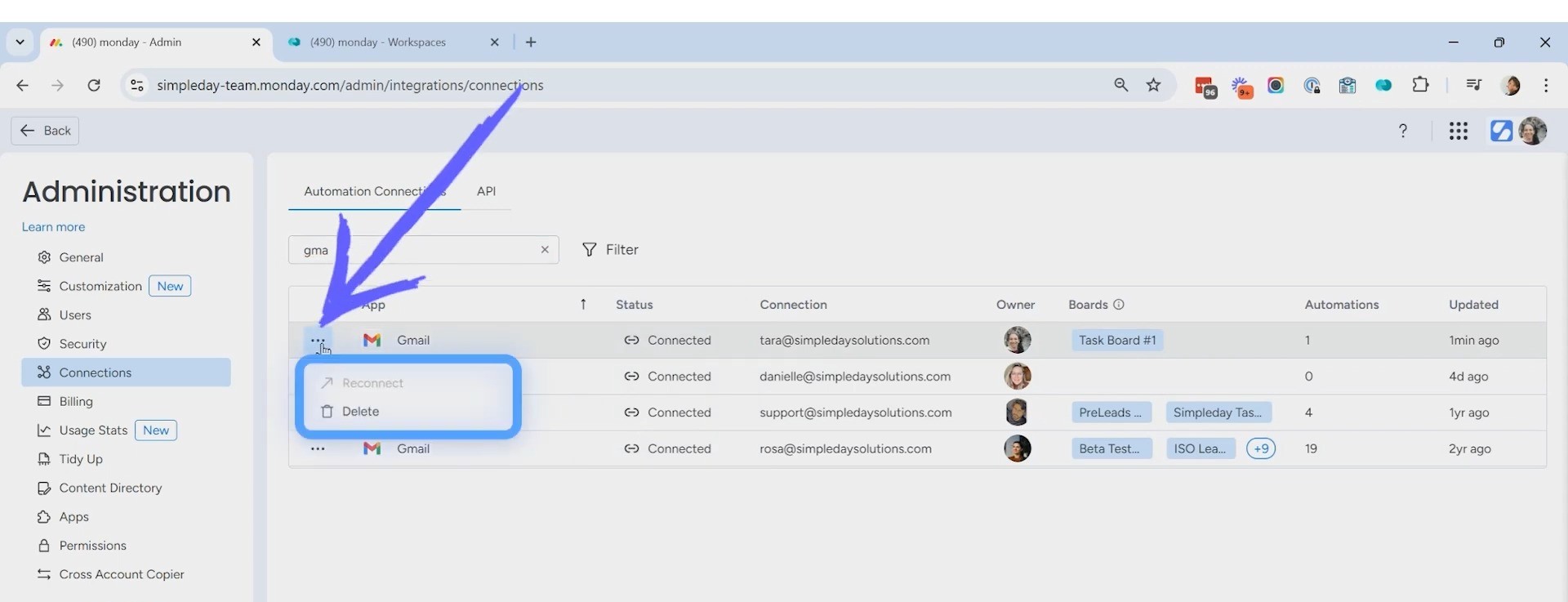
Method 2: Shortcut via CRM’s Email Settings
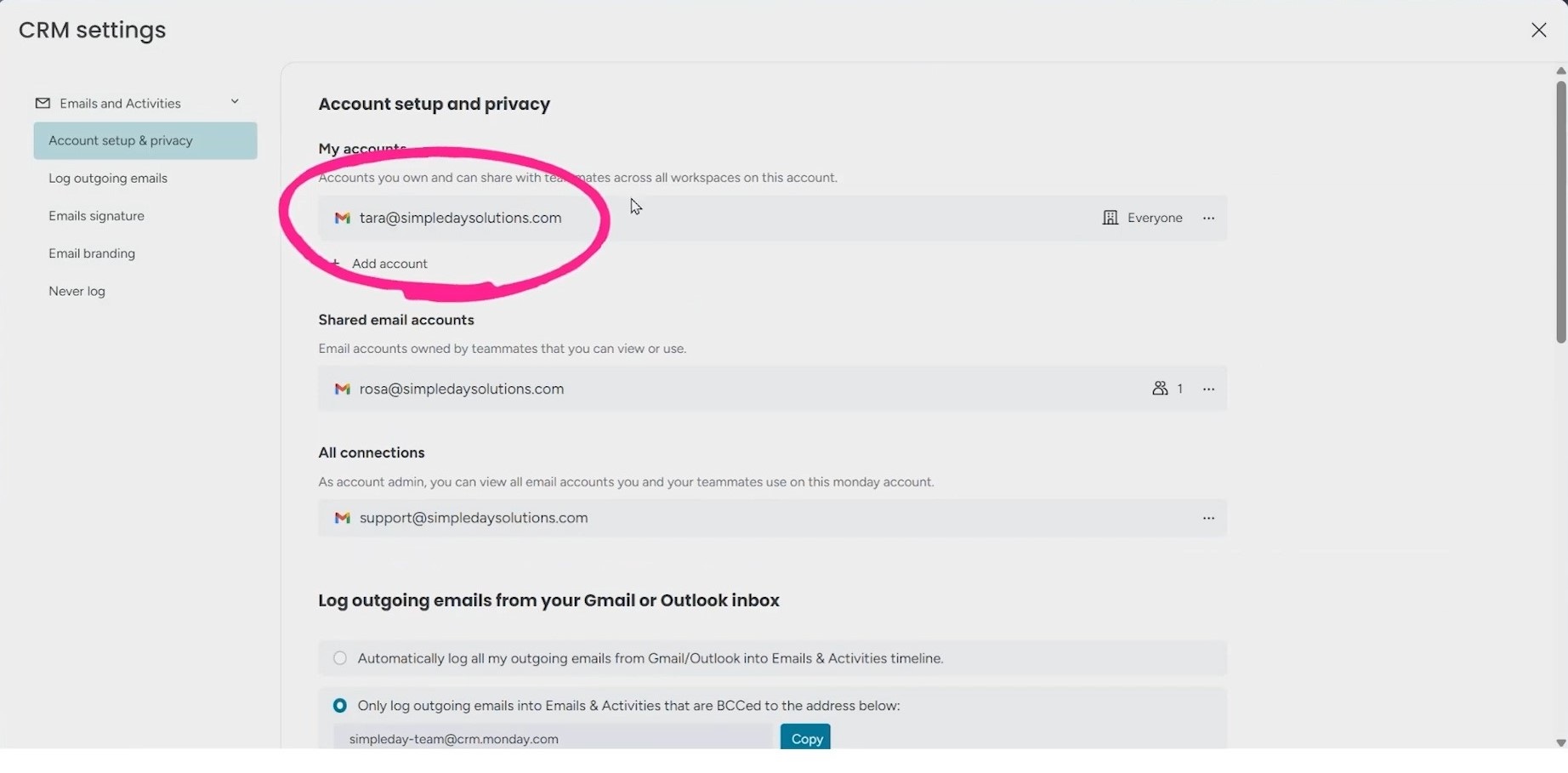
The method 1 works for CRM too, but there is also a short-cut for connecting the email service. At the top-right of your screen, click on your profile photo, then choose “Email Settings.” A pop-up will appear, where you’ll get an “Add account” option to connect to your Gmail or Outlook.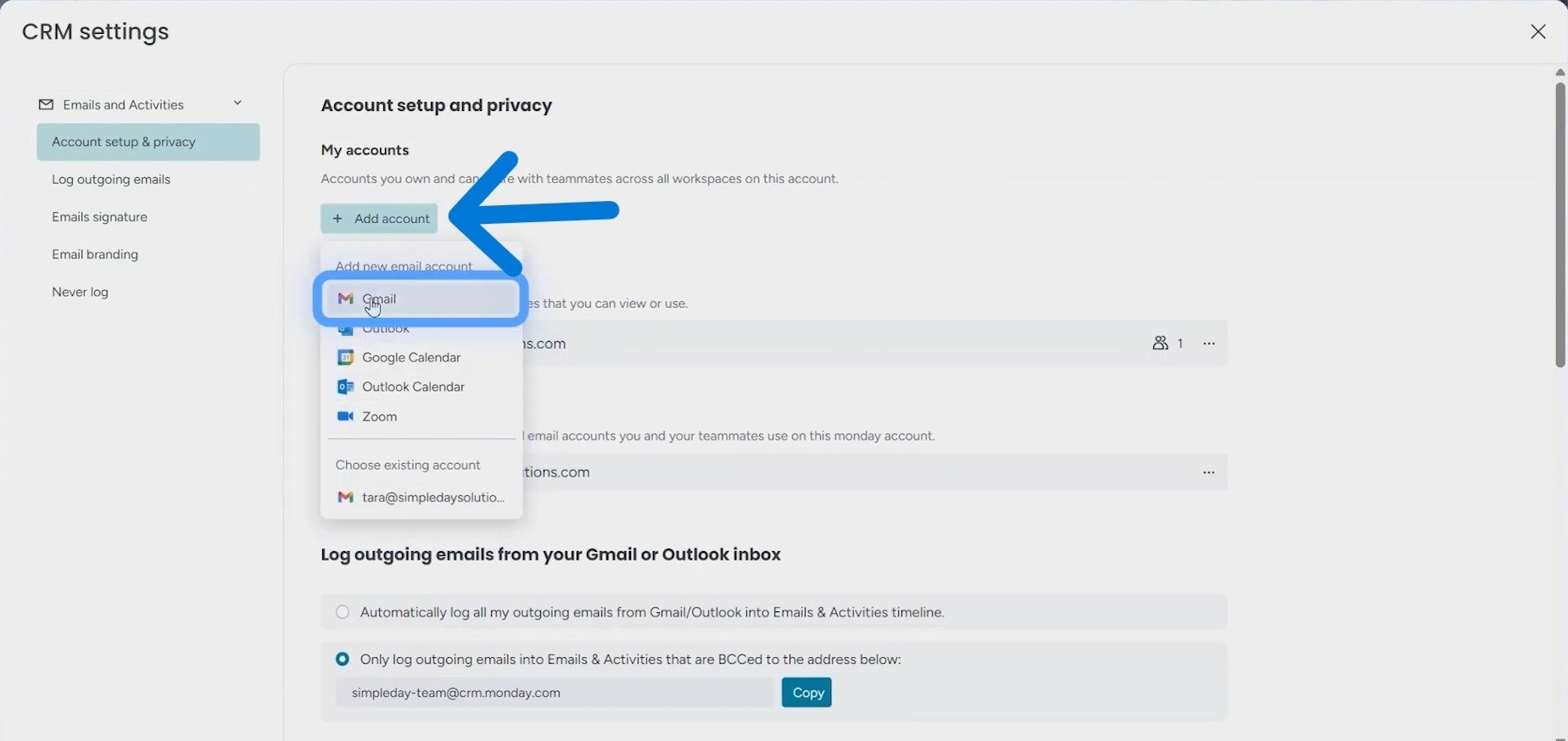
-
- Click “Add Account.”
-
- Choose between Gmail or Outlook.
-
- A window will pop up asking for permission, just like before.
-
- Select your email and hit “Continue.”