


Follow-up emails are significant in CRM; they keep you connected with leads and customers, remind them about your offers, and make sure your business stays on their radar. But let’s be real, when you’re dealing with so many things, it’s easy to forget about following up. Also, sending these emails manually takes time.
How do you keep everything on track in this case? Using the Sequence feature in monday.com CRM could be the right solution. It allows you to automate your follow-up emails. So, you don’t have to worry about losing track of potential leads or forgetting to send a message.
Want to see how to set up Sequences? Check out this tutorial:

How to Set up the Sequences Feature
Before setting up the Sequences, you have to choose a board where you’ll pull the information from. For this example, I’ve chosen the “Leads” board because this is where all my leads are coming in.
To get started, click on the “Sequences” tab at the top menu. It’ll open a window where you’ll find the option to add a new sequence; go ahead and click that. This is where you’ll design your follow-up workflow.
Once you’re in, you’ll notice there are four different action types to choose from:
- Automatic Email
- Manual Email
- General Tasks
- Call Task
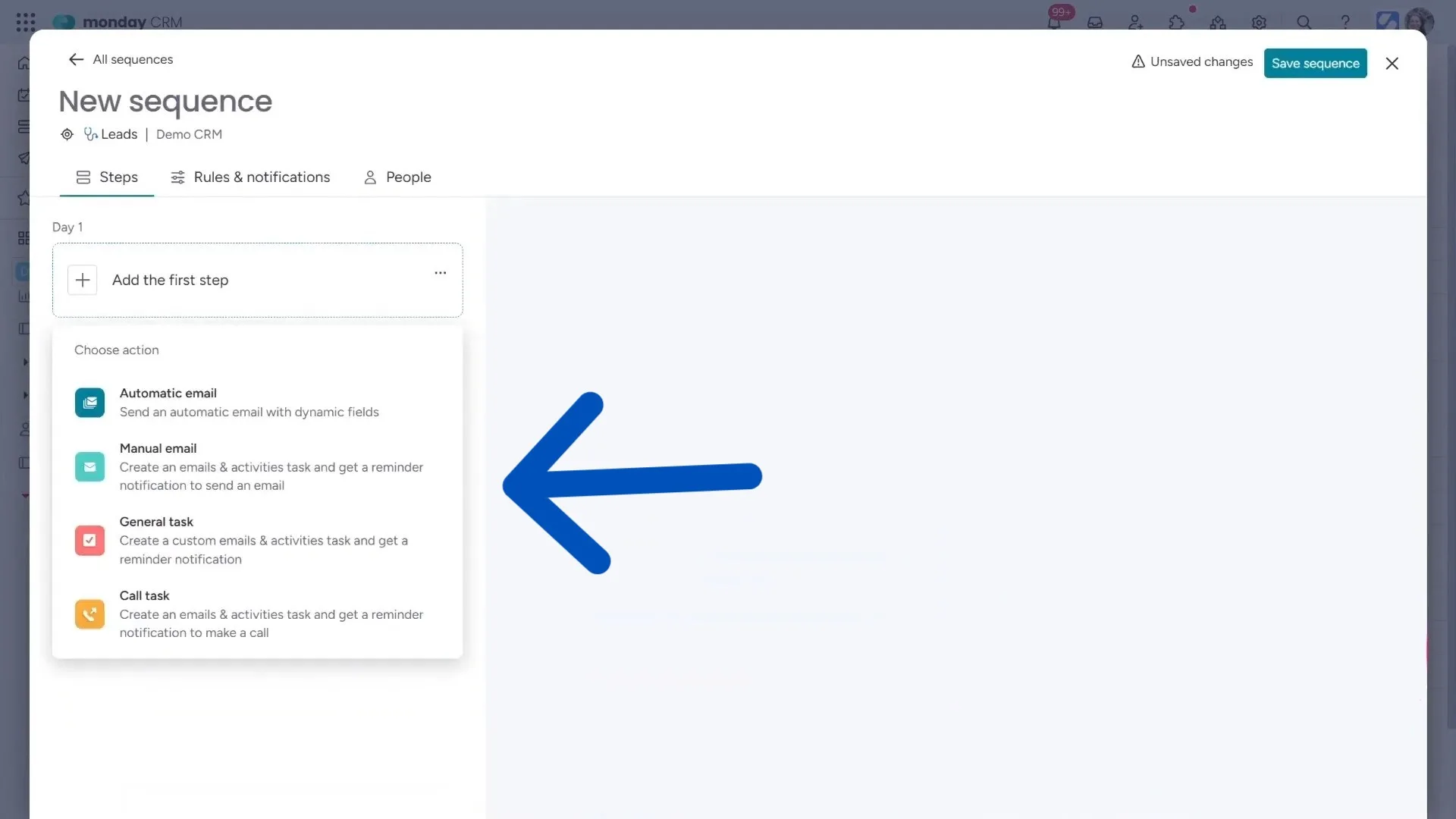
Each of these options makes your communication with leads more efficient and keeps everything organized. Depending on your workflow, you can mix and match these steps to create a system that works best for you.
Writing and Customizing the Automated Email Sequence
In this section, I’ll discuss the process using the automatic email feature.
i. Writing the Email
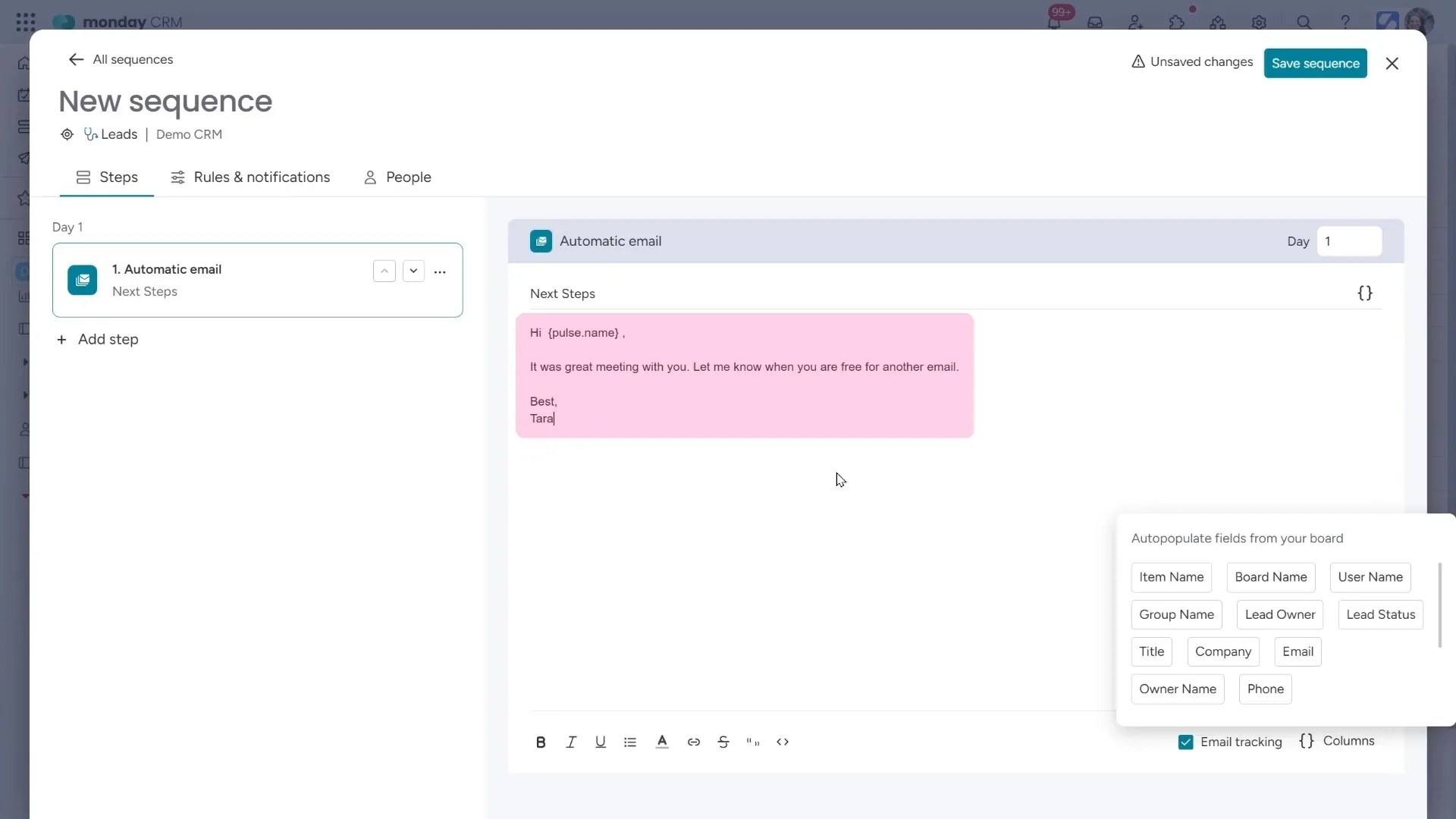
Click on the “Automatic Email” option and add a subject line. After that, I can write the body of the email. You can pull in dynamic information from the “Columns” options, such as Item Name, User Name, Lead Owner, Lead Status, Company, etc.
After writing the email, you can decide when it should go out. You can choose a specific day, like 1, 2, or 5, for it to be sent. If I need to tweak or add more, I can easily duplicate or delete steps by clicking on the three dots beside the item.
ii. Customizing Rules & Notifications
Your next step is going to the “Rules & notifications” section. Here, you can tweak a bunch of settings to fine-tune your automatic email sequence.
In this section, you have the option to activate my sequence. Also, you can select the email address where you want the automated emails to be sent from. Currently, it’s only connected to one email address, but the monday.com team is working on adding more options. You can also customize which CRM columns to pull data from.
Some other settings you can change are the time zone and the days & time of the day to send the emails. So, you can set the time to the New York time zone and restrict certain days like weekends for sending.
You can also choose specific hours to send the email. For example, you may set it to go out between 9:00 AM and 11:00 AM, ensuring the email lands in inboxes right when people start their day.
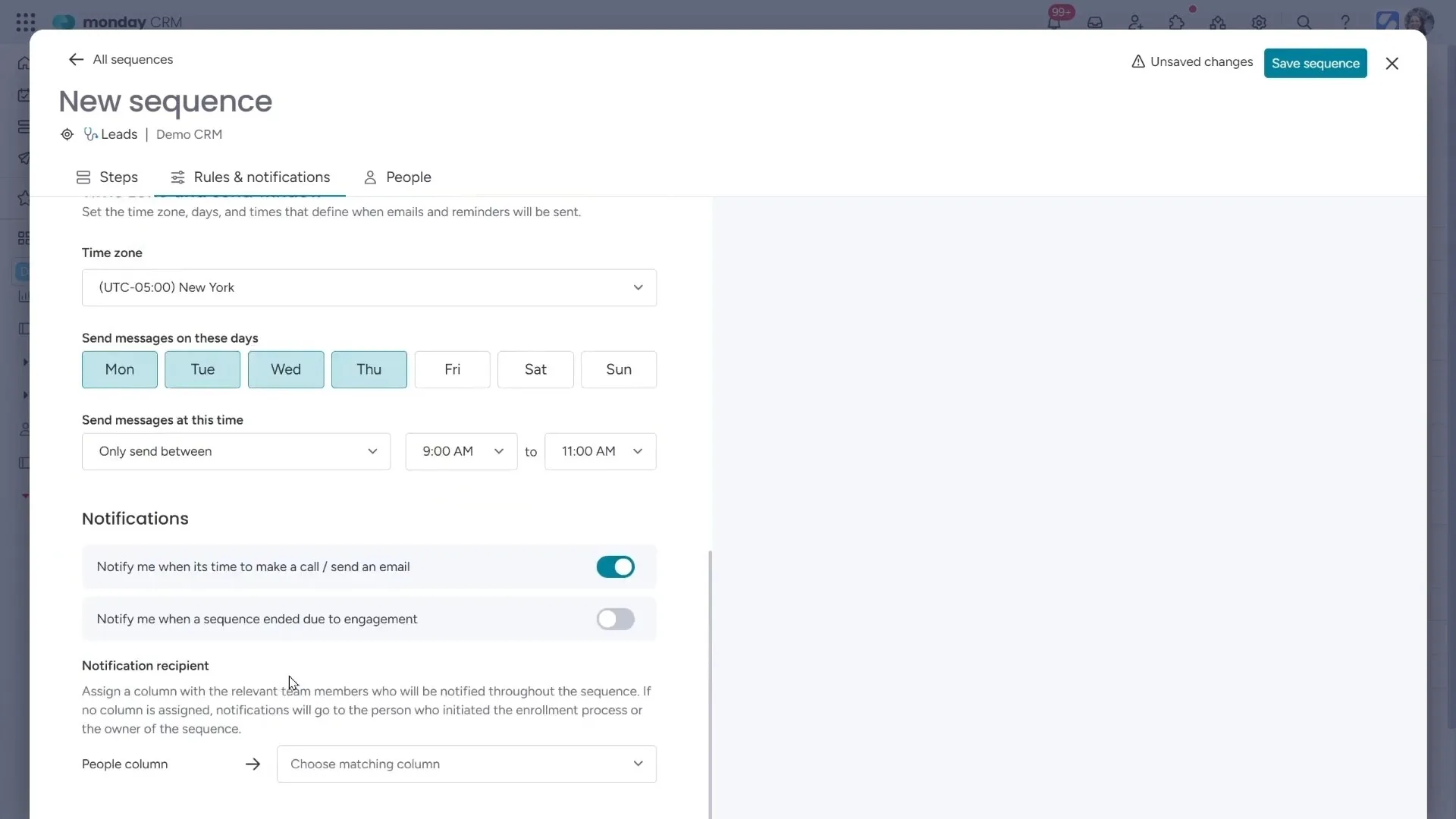
There’s even an option to receive notifications to let you know when emails are sent or when the sequence ends. You also can assign a person to be notified, too, which is useful for keeping track of progress.
iii. Set up the Second Email
By following this step, you can add more emails to your automated sequence. You can either use the “Add step” option from the left panel or simply duplicate the first email and edit it as needed.
If you’ve set the first email for Day 1, you can set this second one to be sent on Day 3 (or some other day as you see fit). In this way, you can set a number of emails in a sequence to follow up with your contacts without having to manually send each one.
Once the second email is set up, I can customize its subject line and body to fit your needs. For example, I might want to change the content from “It was great meeting with you” to something more direct, like “Just checking in – are you still interested?”
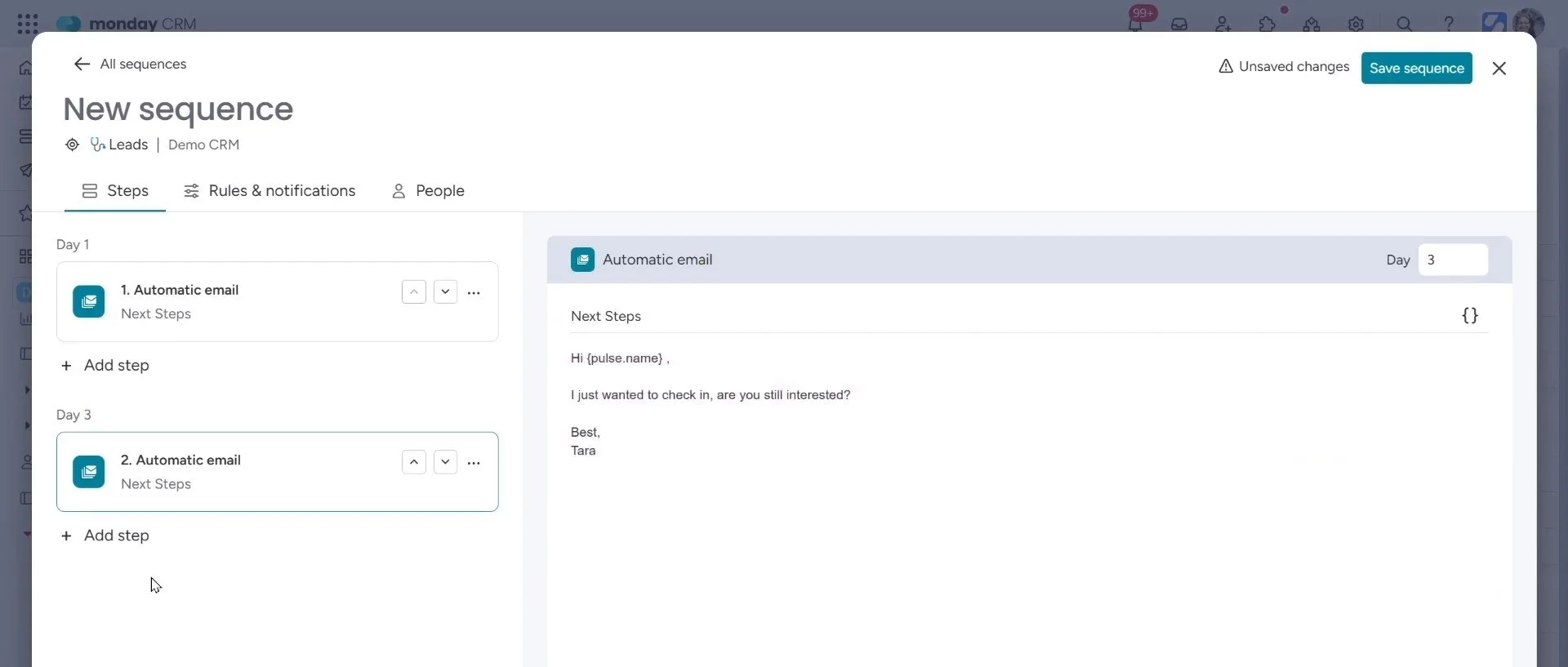
You can fully personalize your communication and set it up to work automatically. This helps ensure that no lead slips through the cracks while keeping things efficient and professional.
Activating and Monitoring Your Sequence
Once you’ve set up your basic email sequence, you can add even more steps to make your follow-up process more comprehensive. For example, if you want to include a manual email step, you can do that too. This will create a new email and task that requires you to manually set it up and send it.
You can also create tasks to remind yourself to take specific actions, like making a call, and those tasks will show up in your emails and activities. This flexibility allows you to build out a more detailed communication flow.
When you’re done creating your sequence, don’t forget to hit “Save Sequences.” This will save all your work and show you key details about the sequence, like who created it, the various steps, and the scheduled days for each email. It will also show you how many people are currently active in the sequence.
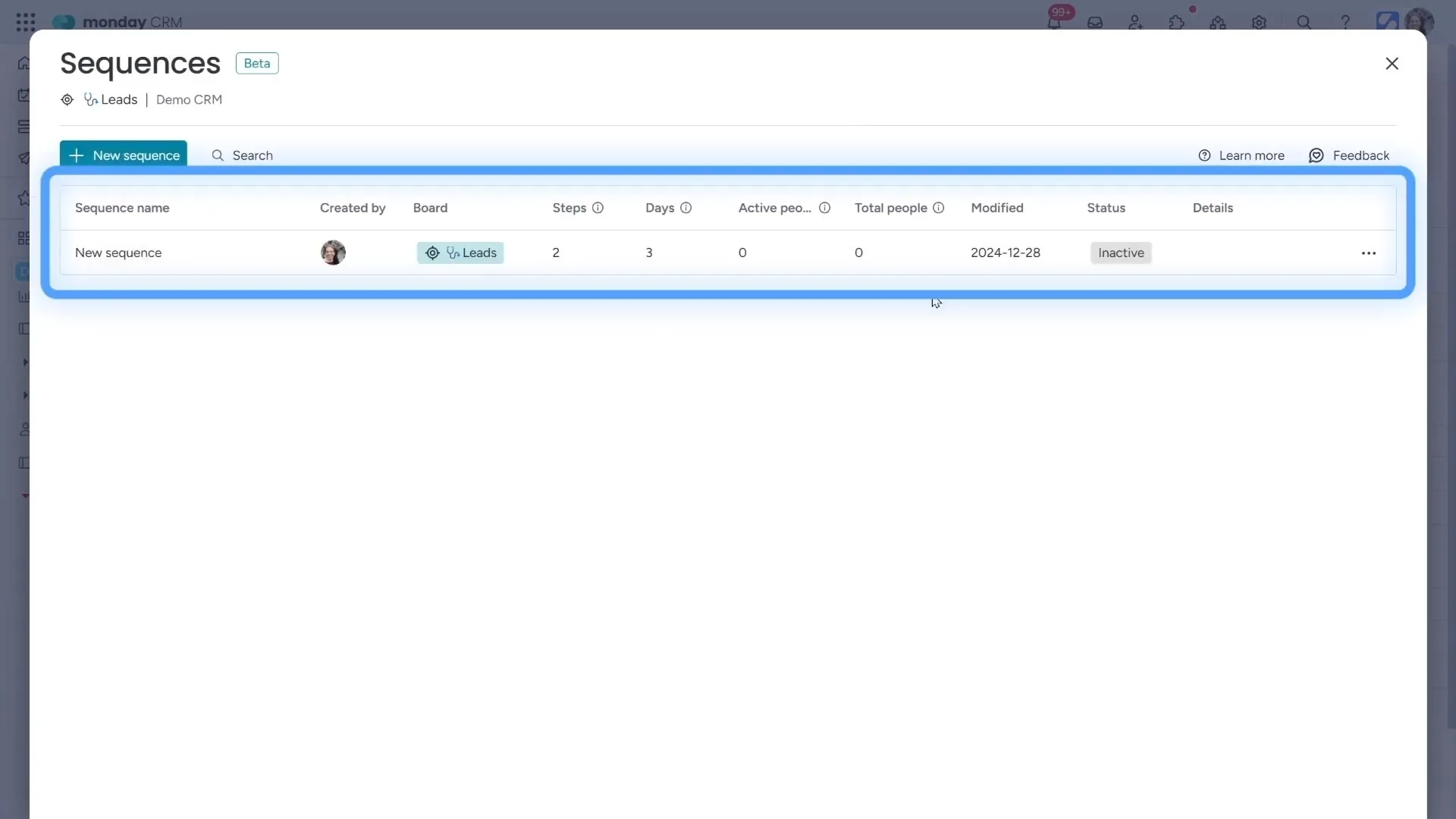
However, once you’re ready to go, all you need to do is start the sequence, and it will automatically begin sending emails to everyone on your board. It’s a great way to keep things organized and ensure nothing falls through the cracks.
Using the Workflow Sensor
One additional feature worth mentioning, especially for those on the monday.com Enterprise plan, is the Workflow Sensor. This tool lets you build automated workflows, and the best part is you can integrate your email sequences directly into these workflows. It adds a whole new layer of automation and organization to your process.
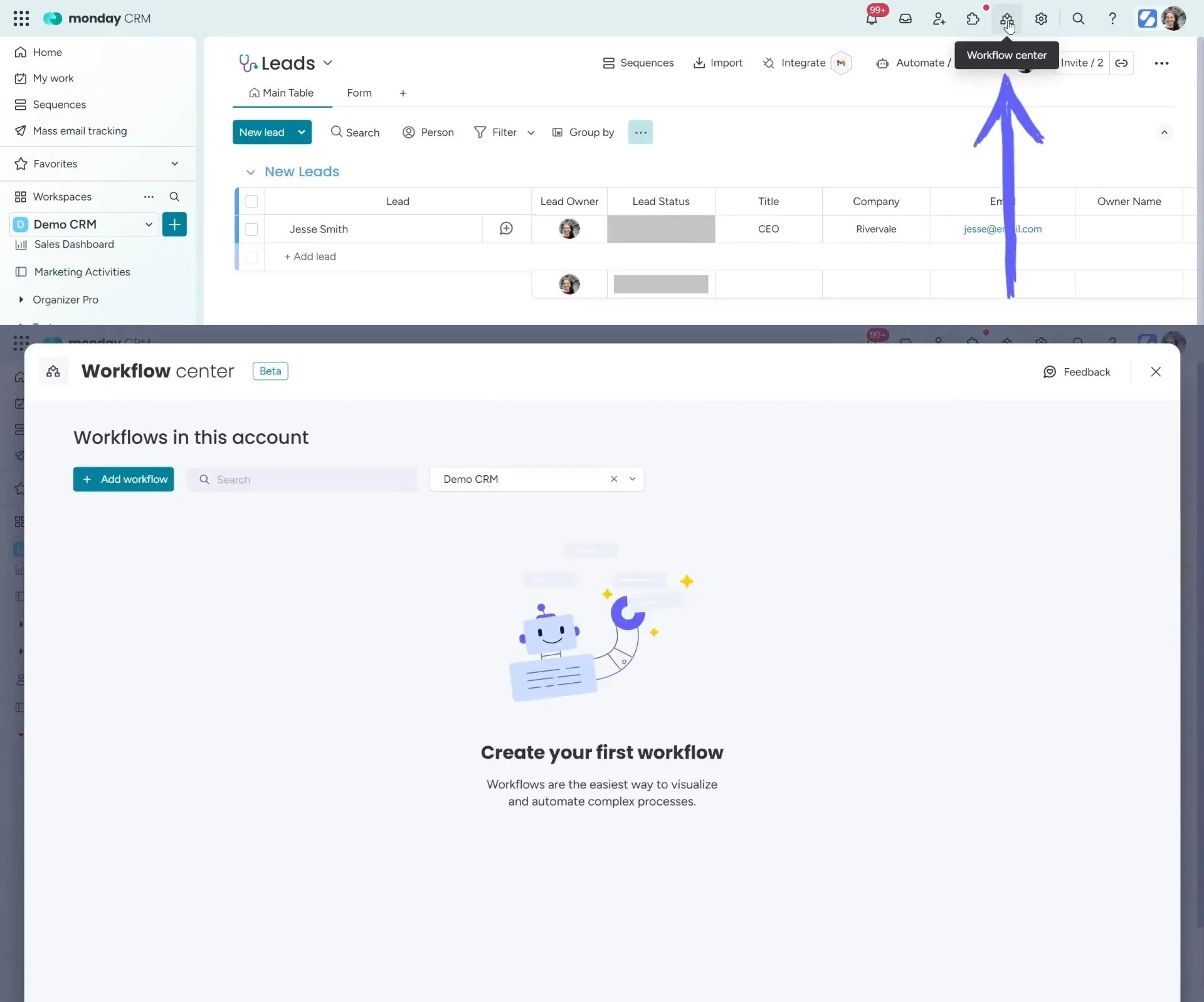
For example, you could set up a sequence with multiple stages, like follow-ups or check-ins, and then automate actions based on those stages. If a lead never responds, you can automatically update their status to “Lost,” helping you keep your CRM organized and up to date without any manual intervention.
This integration of sequences into workflows is a powerful way to streamline your entire lead management process. If you’re on the Enterprise plan, you should explore this feature. It can make a huge difference in how you manage and track your leads.
Ready to automate your email sequences and streamline your workflow with monday.com? Simpleday can help you set up and implement the perfect CRM system tailored to your needs. Whether it’s automating follow-ups, creating tasks, or integrating sequences, we make sure you get the most out of monday CRM. Contact us to learn more about our services.
