


Monday.com recently rolled out a small but mighty update to connected board columns. If you’ve ever set up a connection between boards and later realized you chose the wrong type, you know the frustration of having to start over.
Not anymore.
This guide walks you through what connected board columns are, how they work, and how this update saves you from unnecessary rework.
If you want to watch the tutorial, check below:

What Are Connected Board Columns?
Connected board columns let you link two separate boards so you can view information from one board on another. Think of it as creating a window between boards.
Here’s a simple example:
- You have Board A (High-Level Projects)
- You have Board B (Low-Level Projects)
So, by adding a connected board column on Board A, you can pull in and display items from Board B. This is particularly useful when you’re managing related workflows across different boards, like linking individual tasks to their parent projects.
How to Create a Connected Board Column
Setting up a connected board column takes just a few clicks.
Step 1: On your board, click the “+” button to add a new column.
Step 2: Search for “Connect boards” and select it.
Step 3: Choose the board you want to connect to by clicking the “Select boards” option.
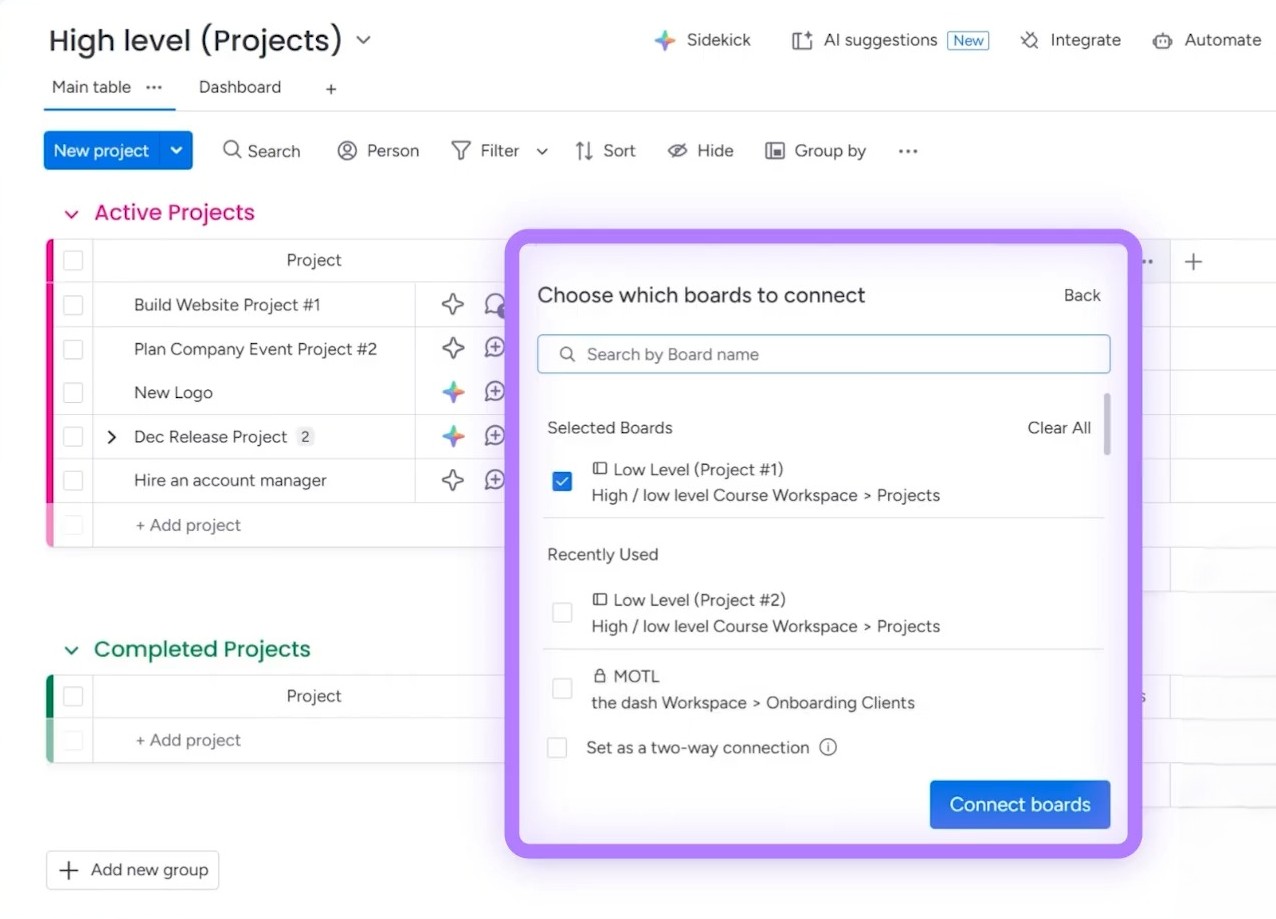
Step 4: Decide whether you want a one-way or two-way connection (will discuss more on this in the next section).
Step 5: Click “Connect boards.”
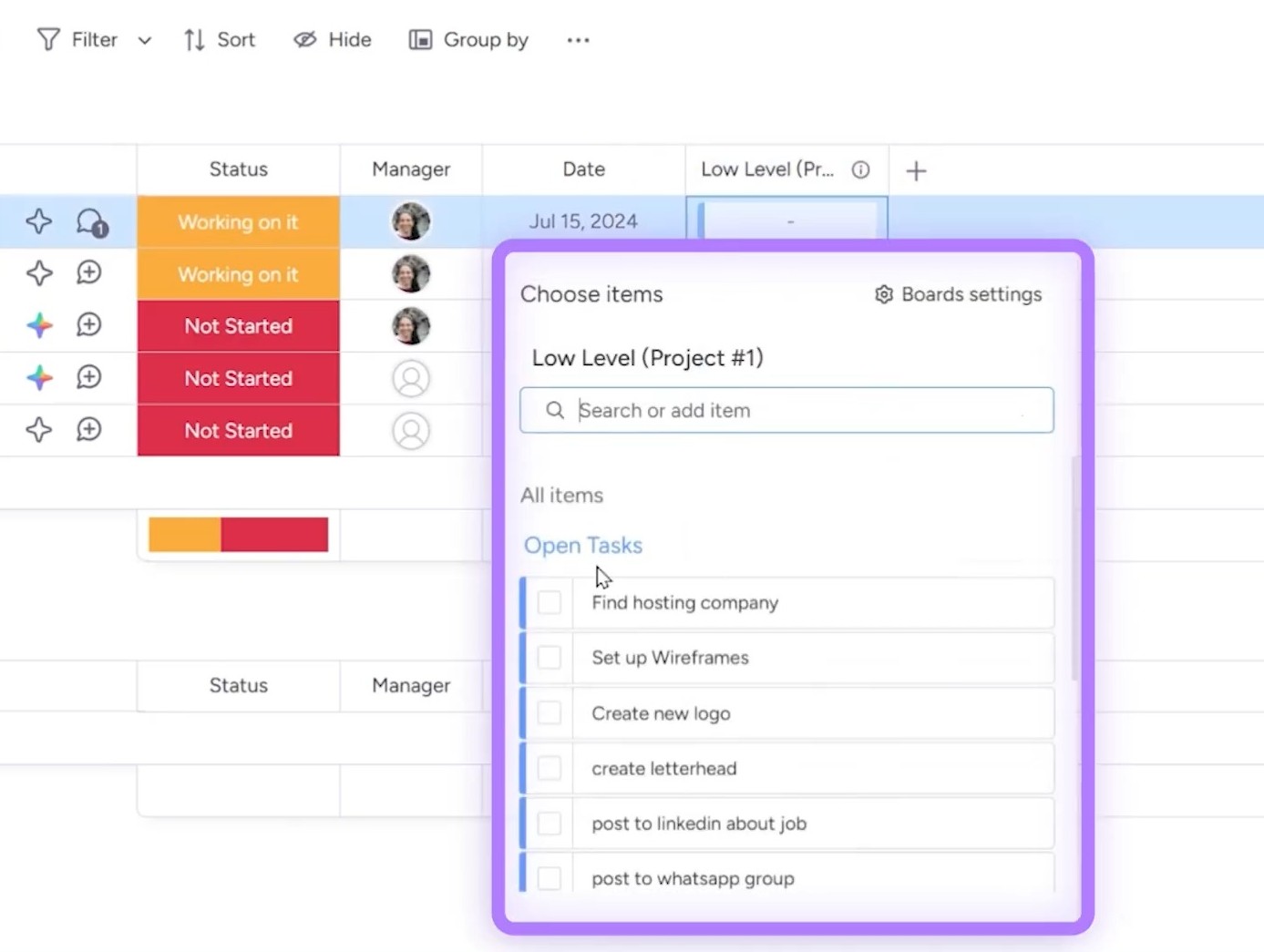
Once connected, you can click on any cell in that column and select items from the linked board to display.
One-Way vs. Two-Way Connections
This is where things often get confusing, so let’s break it down clearly.
One-Way Connection
A one-way connection means the connected board column only appears on the board where you created it.
For example:
- You’re on your High-Level Projects board
- You connect it to Low-Level Projects
- The connection column shows up on High-Level Projects only
- Low-Level Projects has no indication of this link
Two-Way Connection
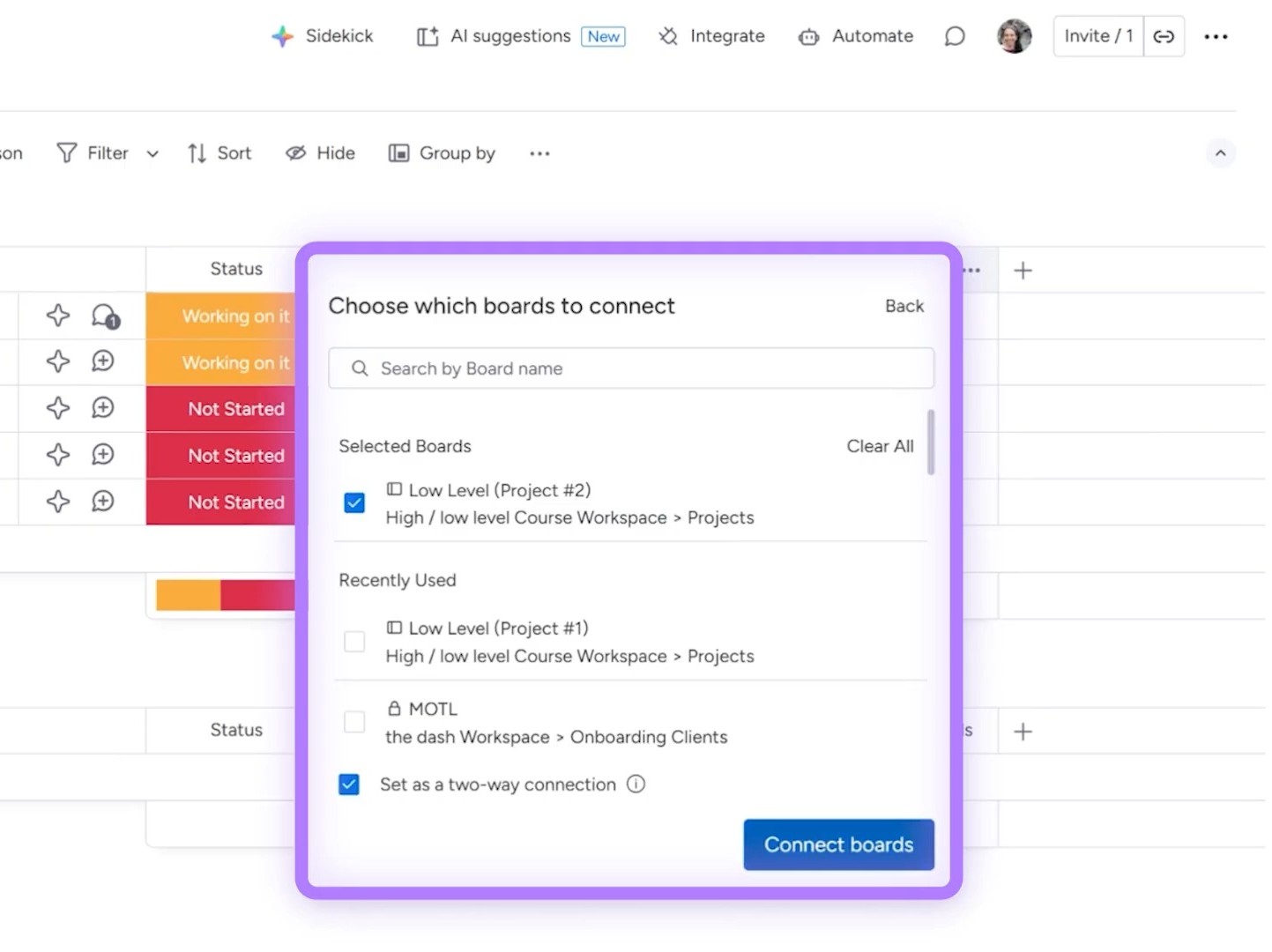
A two-way connection creates a connected board column on both boards automatically.
For example:
- You connect High-Level Projects to Low-Level Projects with a two-way connection
- Both boards now display a connected board column
- You can see the relationship from either board
When creating your connection, simply check the box that says “Set as a two-way connection” before clicking “Connect boards.”
The Update: Switch Between Connection Types Anytime
Here’s where the game-changer comes in.
Previously, once you created a one-way or two-way connection, you were stuck with it. If you realized later that you needed the opposite type, your only option was to delete the column and start fresh, which means losing all your existing connections in the process.
If you had hundreds of items already linked, this was a nightmare.
Now, monday.com lets you change the connection type whenever you want.
How to Change a One-Way Connection to Two-Way
Step 1: Click on the connected board column header.
Step 2: Select Settings, then Customize connection.
Step 3: Toggle on the two-way connection option.
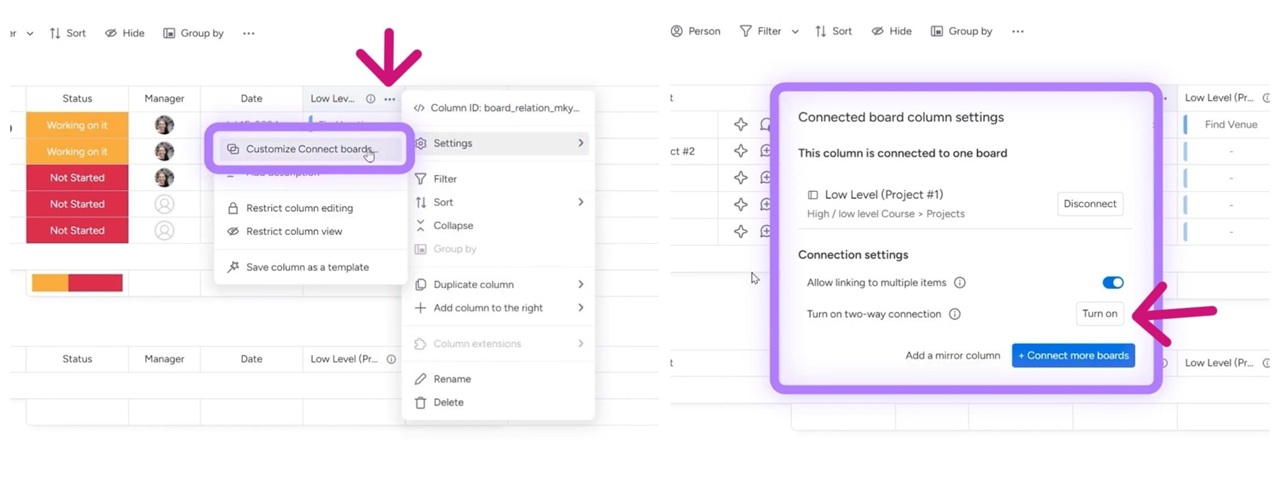
That’s it. This process will create the corresponding column on the other board, with all your existing connections remaining intact.
How to Change a Two-Way Connection to One-Way
The process works the same way in reverse. Go to the column settings, customize the connection, and toggle off the two-way option. The connected column on the other board will be removed.
Why This Matters for Your Workflow
This update might seem minor on the surface, but it solves a real pain point:
- No more starting over: Change connection types without losing your linked items.
- Flexibility as you scale: If your workflow needs to evolve, now your connections can too at the same time.
- Fewer mistakes cost less time: Made the wrong choice initially? You can fix it in seconds.
Whether you’re managing client projects, coordinating team tasks, or tracking inventory across departments, this flexibility means your monday setup can adapt as your needs change.
Ready to Build Smarter Workflows?
Connected board columns are just one piece of making monday.com work for your business. At Simpleday, we help brands and teams set up their workflows the right way, so you’re not discovering fixes like this after hours of frustration. Let us handle the setup while you focus on growth. Get answers to your questions with a free consultation.
