


Meeting notes scattered across different apps create chaos, but monday.com just launched a solution: an AI-powered notetaker integrated inside your workspace.
I installed and tested it, capturing everything along the way. In this blog post, I’ll cover the entire setup process, what happens during an actual meeting, and how your notes appear inside your monday dashboard.
Prefer watching over reading? The video version of this tutorial walks through each step. Check out:
Installing the monday.com AI Notetaker
The installation process takes just a few clicks. Here’s how to get started:
Step 1: Access the Installation Page
Navigate to the app installation page within monday.com. You’ll see the option to add the Monday Notetaker to your account.
Step 2: Choose Your Workspace Settings
The system asks whether you want the notetaker available across all workspaces or only specific ones. Select based on your team’s needs. Choosing the option “all” keeps things simple if you’re testing.
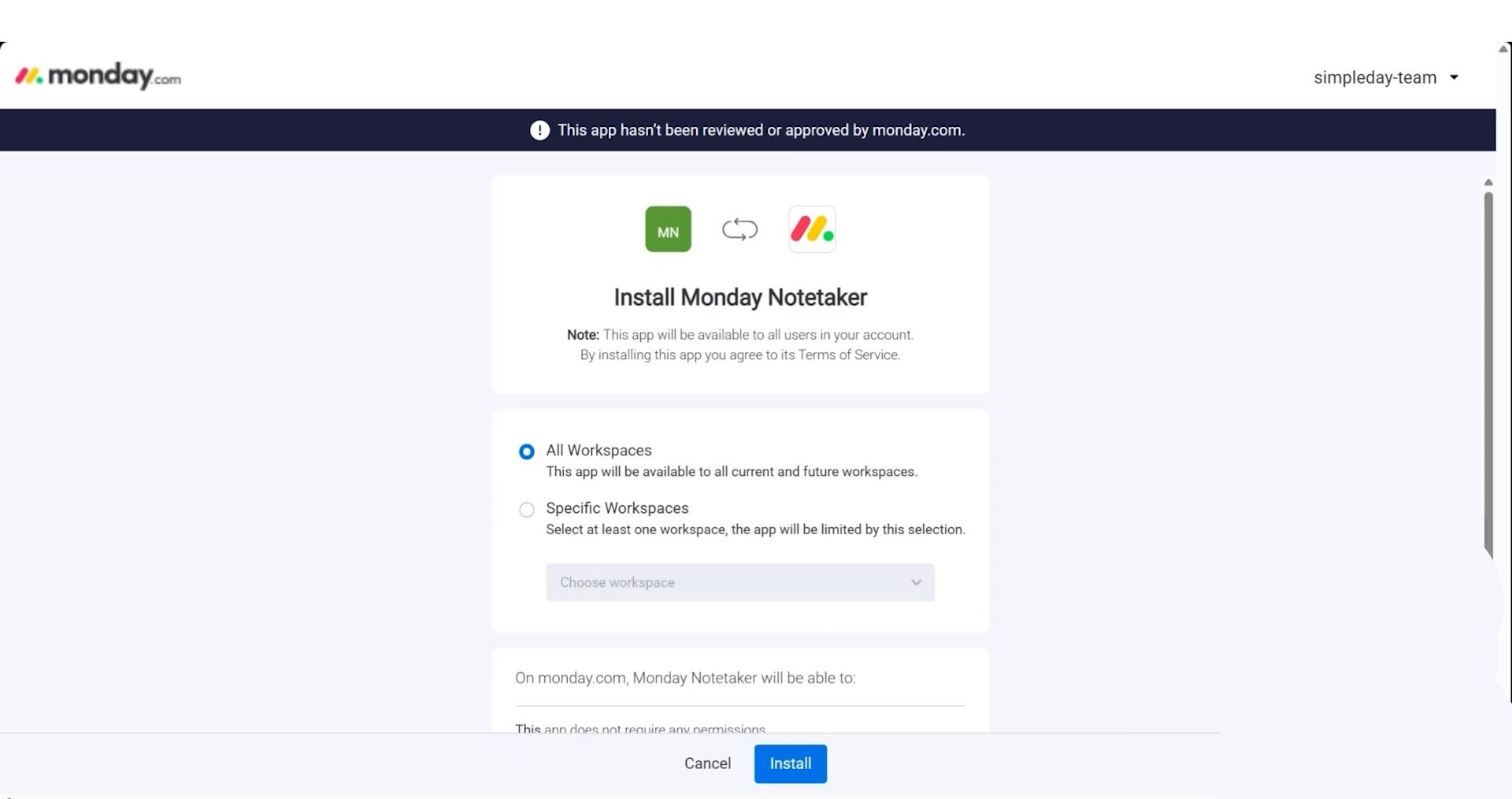
Step 3: Click Install
Hit the install button, and it’ll open your admin section displaying all installed apps.
Step 4: Find the Notetaker
Search for “Monday Notetaker” in your apps list. Click through to the app page. Since this feature launched recently, documentation remains minimal, but the interface guides you forward.
Step 5: Launch from the “More” Menu
Click “More” on the left panel of your monday work management dashboard. The AI Notetaker appears here, ready to configure.
Setting up Your Calendar Connection
For the notetaker to join your meetings, you need to give it access to your calendar.
When you first open the AI Notetaker, the interface greets you with a clean dashboard. You’ll notice two main sections:
- Meeting Summary: Where completed meeting notes appear
- Upcoming Meetings: A list of scheduled calls
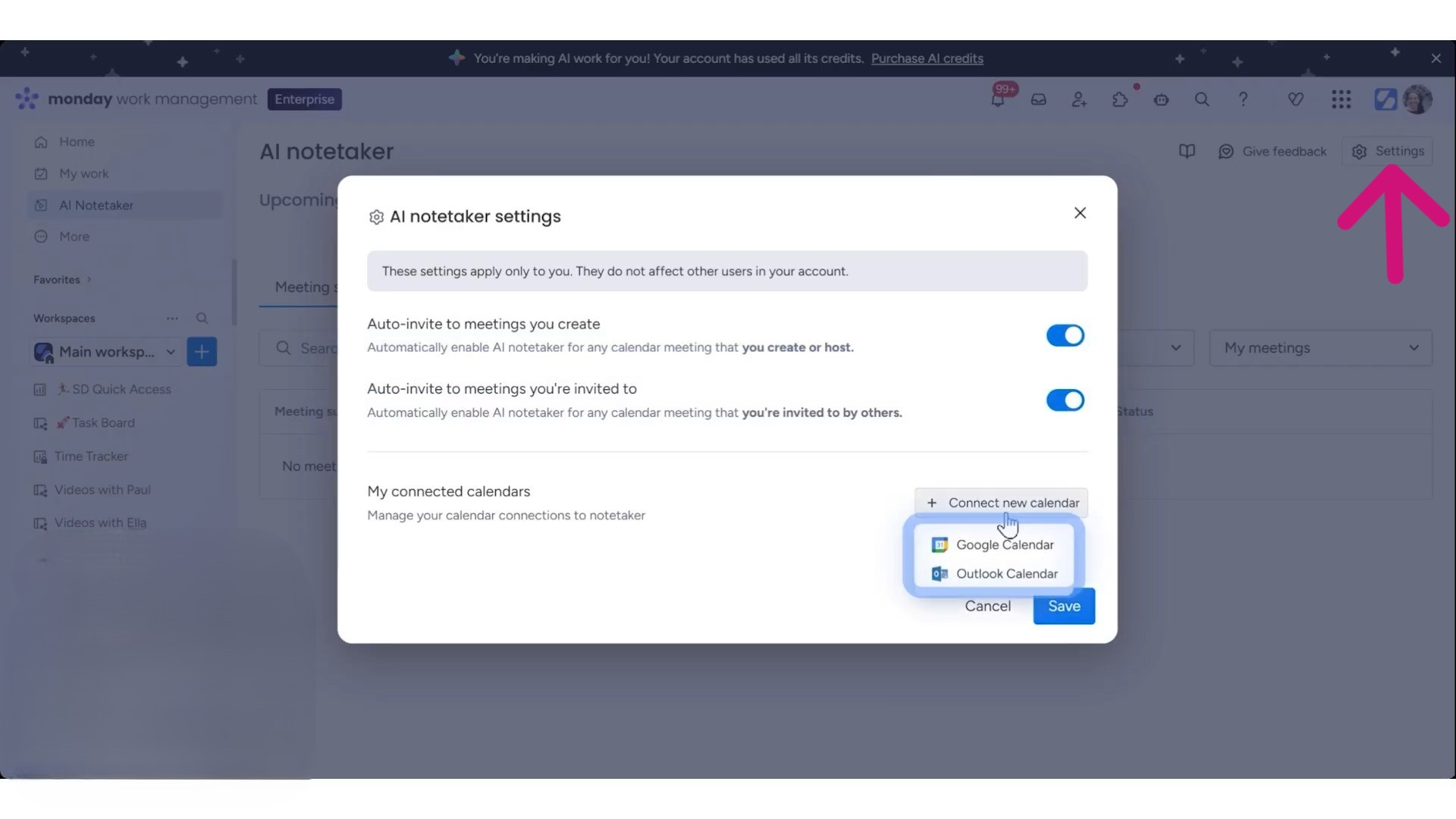
The setup offers 25 free hours to explore the feature, which is plenty of time to test it thoroughly.
Click through the settings to link your calendar. The notetaker supports Google Calendar integration. Grant the necessary permissions, and your upcoming meetings populate instantly.
Once connected, your scheduled calls display directly in the notetaker interface. It’ll pull everything, including internal syncs, client calls, and brainstorming sessions, from your calendar automatically.
How the AI Notetaker Works
When a meeting starts, the notetaker app requests permission to join, just like any other meeting bot. You (or the host) approve the request, and the notetaker enters the call.
The process works like this:
- Your meeting begins on Zoom, Google Meet, or your preferred platform
- The Monday Notetaker sends a join request
- You approve the notetaker’s entry
- A friendly llama icon appears, indicating the bot records and captures notes
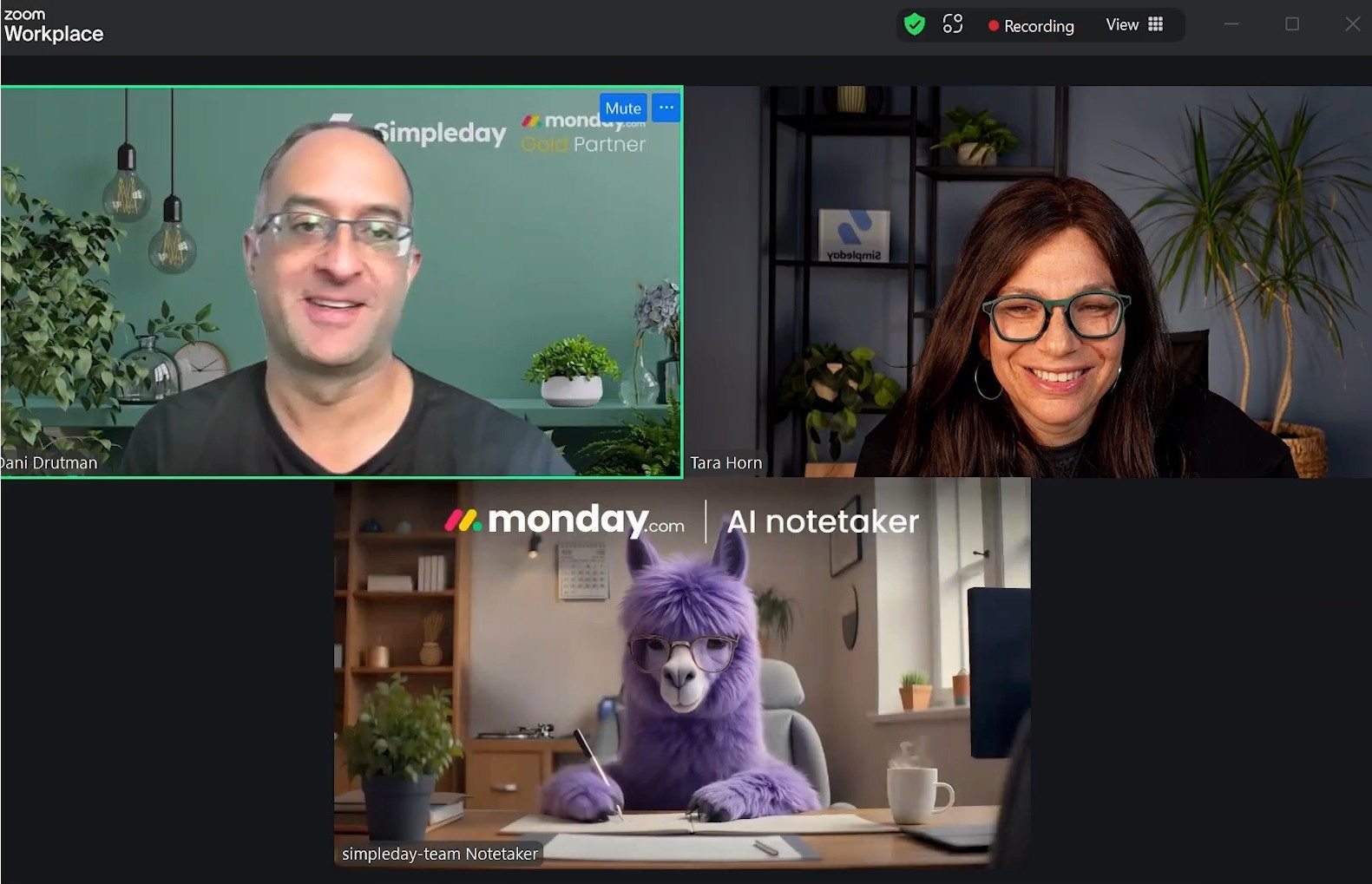
After your call wraps up, head back to the Monday Notetaker interface. Your completed meetings now appear on the dashboard, organized like items on a board.
Click into any meeting to access:
- Overview – A quick snapshot of what the meeting covered
- Pain Points – Key challenges or concerns discussed
- Action Items – Tasks and follow-ups extracted from the conversation
- Full Video Recording – The actual meeting footage
- Topics – Main subjects broken into digestible sections
- Complete Transcript – Word-for-word documentation of the call
Each meeting also displays participant information, including how long each person spoke during the call.
Using Sidekick to Query Your Meetings
Sidekick is monday.com’s AI assistant, which integrates directly with your meeting notes. This feature transforms static recordings into interactive knowledge bases.
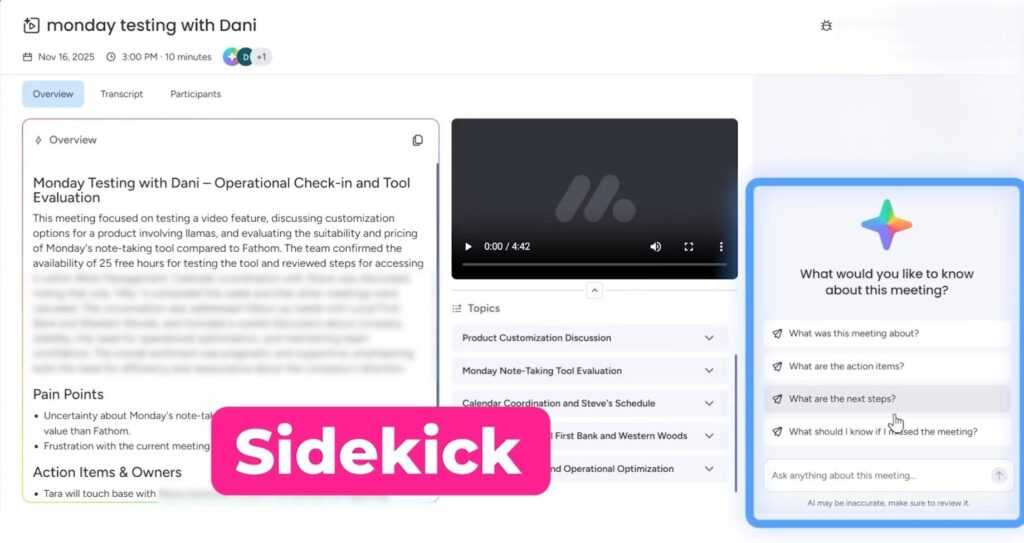
Open any meeting summary and find the Sidekick panel. Ask questions like:
- “What should I know if I missed this meeting?”
- “Point out the action items that came out of this discussion.”
- “What concerns did the client raise?”
Sidekick scans the transcript and delivers relevant answers instantly. Team members who couldn’t attend catch up in seconds instead of watching hour-long recordings.
Check this video to learn more about other monday AI features.
Sharing Meeting Notes With Your Team
Collaboration stays seamless with built-in sharing options.
From any meeting summary, you can:
- Share with participants only – Keeps notes private to attendees
- Share with your organization – Opens access across your company
- Select specific team members – Choose exactly who sees the notes
- Copy a shareable link – Send the meeting summary anywhere
These options ensure the right people access the right information without cluttering everyone’s workspace.
Ready to Transform How Your Team Uses monday.com?
Setting up new features scratches the surface. Getting monday.com to truly power your operations requires strategy. Simpleday helps brands, businesses, and solopreneurs implement monday workflows that match how their teams actually work. Let’s build your system together.
