


The monday.com ChatGPT integration is one of the most useful AI connections you can set up in your monday.com account right now. Once you connect monday.com and ChatGPT through the ChatGPT connector in monday’s AI Hub, you can ask ChatGPT in plain language to read your boards, update items, and build dashboards inside monday.com, among other tasks. There’s a bonus most people miss: because ChatGPT does the work, those actions don’t use your monday AI credits. Follow the steps below to connect monday.com to ChatGPT in minutes.
To connect monday.com and ChatGPT, you need to start with 3 things:
-
A monday.com account.
According to monday.com, the connection works on every monday plan, including Free. -
A ChatGPT account.
Note that the ChatGPT plans that can use apps, and with how much access, changes over time, so check your plan in ChatGPT settings before you start. -
Admin permission to install apps in monday.com.
If you’re not an admin, your account admin may need to approve the connection.
One more thing worth knowing: the monday.com ChatGPT connection runs on something called an MCP (Model Context Protocol). You don’t need to know how it works. monday.com handles the setup for you, which is why it only takes a few clicks.
Step-by-Step Guide to Connecting monday.com to ChatGPT
-
Open the monday Marketplace
By clicking the puzzle icon in the top right corner. -
Go to the AI Hub tab.
Up top you’ll see two tabs: Apps and AI Hub. Click AI Hub. -
Find ChatGPT under AI connectors.
Use the search feature or scroll through the page until you find the ChatGPT connector. -
Review the app page and click Connect.
You’ll see a short overview, security and compliance details, the permission levels, and a few screenshots. Click Connect. -
Connect from inside ChatGPT.
A new tab opens on the Apps section of your ChatGPT account, with monday.com showing. Click Connect. -
Sign in and authorize.
A popup asks you to sign in with monday, then a screen asks you to authorize the connection. Check that your monday account name in the top right corner is the right one, then click Authorize.
That’s it! monday.com and ChatGPT are now connected and you can start chatting.
Shortcut from ChatGPT: You can also start on the ChatGPT side. Go to Settings, then Apps, and search for monday.com. From there the flow is the same: Connect, sign in, Authorize.
Which ChatGPT permission level should you choose for monday.com?
Check your permission level before you start prompting ChatGPT. Your permission level determines how much ChatGPT can do in your monday account without asking you first. To find it, click the gear icon on the monday app in ChatGPT.
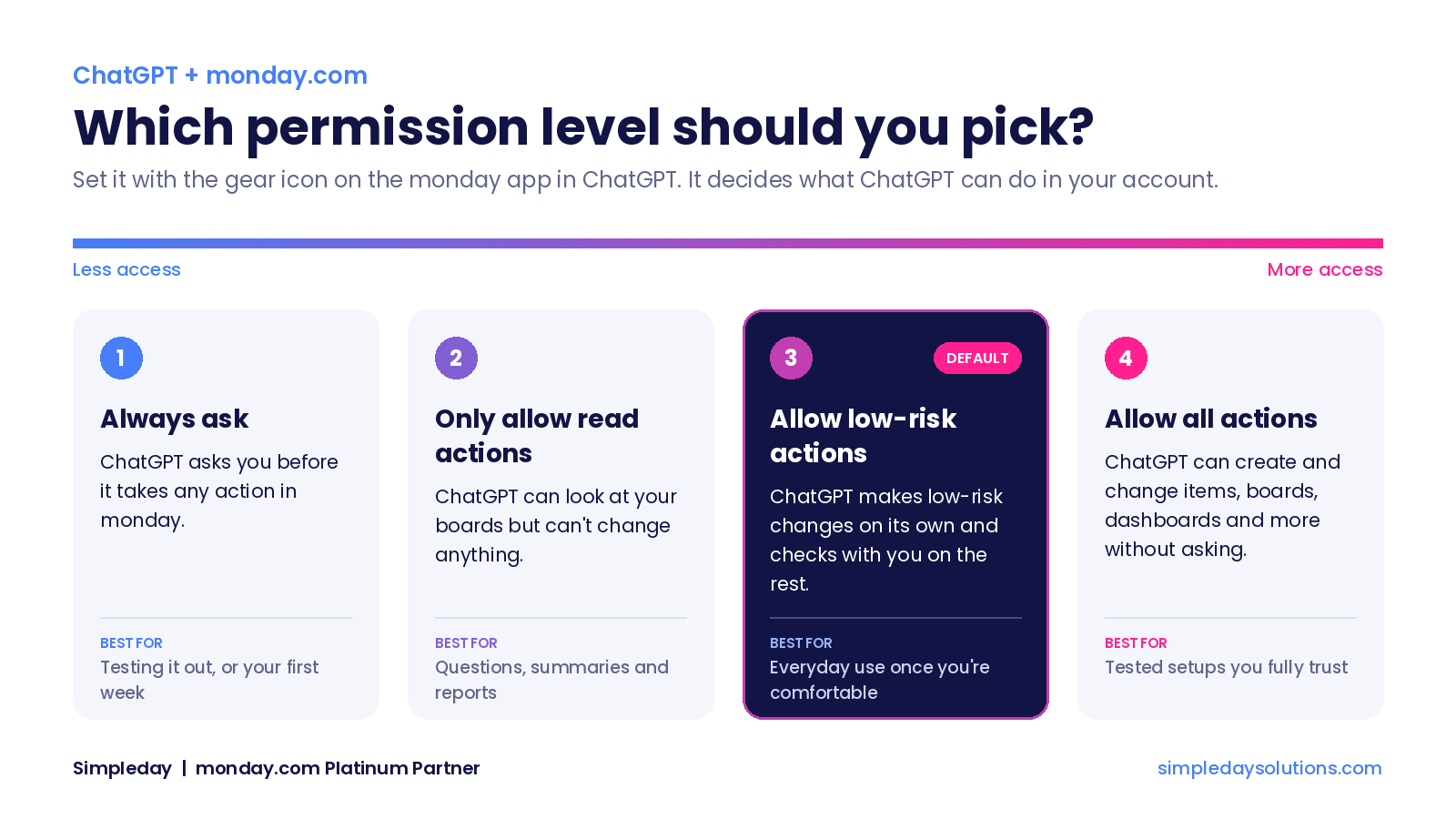
There are four options:
- Always ask. ChatGPT checks with you before it takes any action.
- Only allow read actions. ChatGPT can look at your boards but can’t change anything.
- Allow low-risk actions. This is the default setting.
- Allow all actions. ChatGPT can act in monday.com without asking. Be careful with this setting. You’re giving ChatGPT permission to act inside your monday account, on real boards your team works in. If you’re testing, or your boards hold client or financial data, start with Always ask or read-only and move up once you’ve seen how it behaves.
What can ChatGPT do inside monday.com?
ChatGPT can read data from your monday.com account and, depending on your permission level, create and change things in it. To see the full list, click the gear icon on the monday app in ChatGPT and scroll down to the actions.
Each action is labeled read or write. Read means ChatGPT can look at it (for example, get a form). Write means ChatGPT can actually do it inside monday when you ask.
| What ChatGPT can do | Example prompt |
|---|---|
| Pull data through the monday API | “Which items on the Leads board have no owner?” |
| Get insights from a board | “Summarize what’s overdue on this board.” |
| Create items and updates | “Add a task for Dana to send the contract by Friday.” |
| Create a board, column or view | “Add a priority column to the Projects board.” |
| Create a document | “Write a kickoff doc for this project in monday.” |
| Create a dashboard | “Build a dashboard of tasks per person.” |
| Create an automation | “When status changes to Done, notify the owner.” |
The monday.com ChatGPT connector gets more sophisticated regularly, so don’t hesitate to keep trying new things and seeing what the tools can do.
Example 1: Update every due date on a board from ChatGPT
One extremely useful way to use the monday.com ChatGPT connector is to ask ChatGPT to bulk-update items in monday.com using plain language. Here’s the exact prompt I used:
Can you update all of the due dates on this board in the Open Tasks group to be for today?
The board had five open tasks, all with due dates in June. Here’s what happened:
- ChatGPT showed its steps as it worked: it confirmed the group, found the items, and started applying today’s date.
- On the monday.com board, the due dates changed to today one by one while I watched.
- ChatGPT finished with a summary: it found five items and updated them.
One thing to know: after the dates had already changed, ChatGPT still asked me to approve the update. That’s the permission setting at work (more on that below). I approved it and it confirmed the job was done.
Tip: Paste the board link and name the group in your prompt. The more specific you are, the less ChatGPT has to guess.
Example 2: Build a monday.com dashboard with ChatGPT
ChatGPT can create a real, native monday.com dashboard from one prompt. I started a new chat, checked that monday was connected, and pasted this:
Can you create a dashboard showing me how many tasks each person has and a chart about the breakdown of tasks by status?
First, ChatGPT found the board and read its structure (the schema). It needs a people column and a status column to answer this prompt. My board had both. Then it created the dashboard and built the two charts.
Back in monday.com, the new dashboard was at the bottom of the left panel, named after the board it came from (Task Board 1 in my case). It had two widgets: Tasks by person and Tasks by status.
To be honest about it: this was my second run. The first dashboard didn’t come out how I wanted, so I ran it again. If the first result is off, rewrite the prompt with more detail (which board, which columns, which chart type) and try again. Like with all AIl, when you connect monday.com and ChatGPT, you may need to practice your prompts before the magic really starts to happen.
What else can you do with a monday.com ChatGPT integration?
Once the two are connected, most of the work is coming up with the right prompt. A few that work well:
- To clean up a board: “Move every item with status Done into the Completed group.”
- To discover items with missing information: “List the items on this board that have no owner or no due date.”
- To set up a proper board structure: “Create a board for client onboarding with these columns: client, owner, stage, start date.”
- To get a quick read: “What’s overdue across this board, and who owns it?”
Start with read-only questions on a test board before you let ChatGPT change live data. It’s the fastest way to see how it reads your setup.