


If you have been hearing about monday Sidekick but have not actually put it to work yet, now is the time. Sidekick is one of the most rapidly evolving and useful forms of monday AI, and it’s definitely worth knowing about (and using).
Prefer watching over reading? The video version of this tutorial walks through each step.
How to Access monday Sidekick
There are two places you can open Sidekick, and which one you use depends on what you are doing.
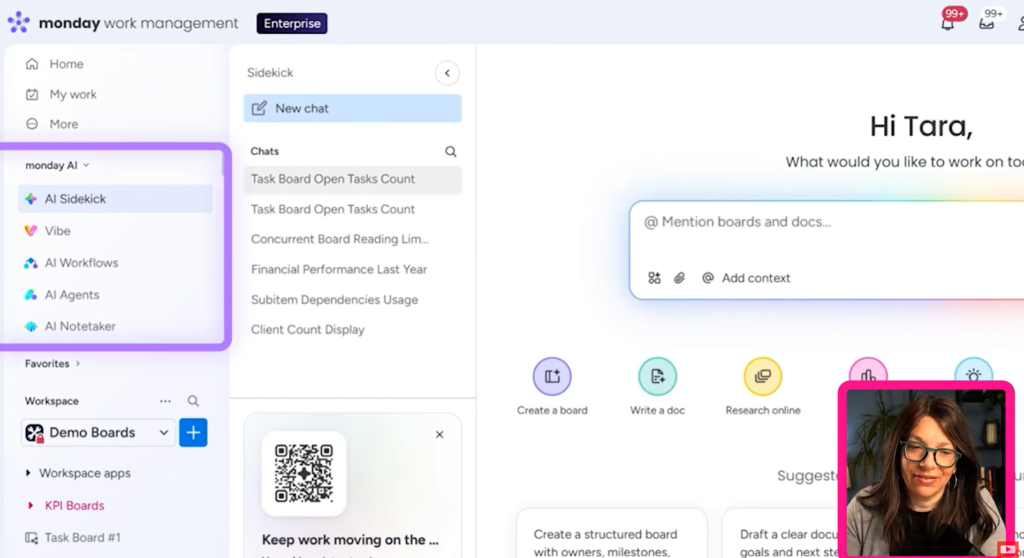
The first is from your left-hand navigation, under the monday AI dropdown. Click AI Sidekick and you land on the Sidekick homepage. This is where you see all your past chats, start a new one, and get suggested prompts to try.
The second is from inside any individual board. Look in the bottom right corner, click Sidekick, and it opens right there in the context of the board you are working on.
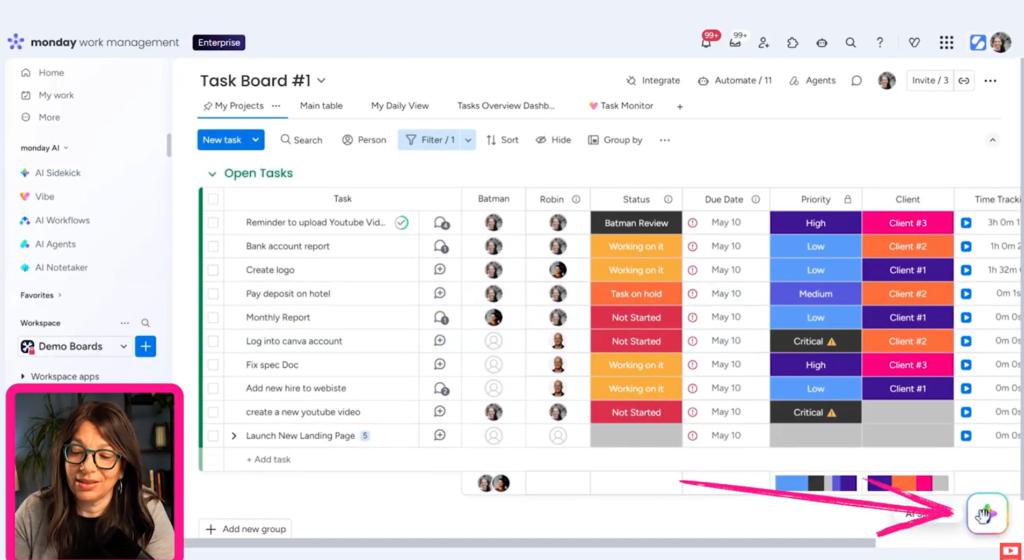
Use the homepage when you want to think across your whole account. Use the in-board version when you are heads-down on one specific board.
What Sidekick Actually Does
At a high level, monday Sidekick does two things. It analyzes, and it acts.
Analyzing means it can read your monday.com boards and tasks and tell you what is going on. Acting means it can actually do the work that you tell it to do.
The acting part goes further than most people realize. As mentioned, sidekick can work inside a board. But equally importantly, it can also build and run workflows, connect to monday agents, and tie into your other tools. Connect it to your calendar or Gmail and it will draft an email or create an event for you, all inside monday.com
Combining multiple skills brings the most value to monday Sidekick. You want it to understand your work and then move it forward.
The 4 Ways to Put Sidekick to Work
We find it helpful to break Sidekick down into four categories. Once you have this frame in your head, it gets a lot easier to know what to ask for.
Prioritization: what needs my attention?
Start out simple. A prompt like “prioritize my tasks and tell me what I’m behind on” already gives you something useful.
Then break things down and get into the details. Try a prompt “what are the blockers holding me back, and what should be more important?”
In our example, Sidekick came back with the three overdue tasks, flagged the most critical one, told us what to start immediately, and gave a clear bottom line. It organized the day by priority instead of just listing tasks.
One reminder that applies to every prompt (not just in Sidekick but in all AI platforms): your prompt is the most important variable. The clearer and more specific you are, the better the output.
Understanding: what’s really going on?
This stage is where you stop asking about individual tasks and start asking about the board as a whole.
Try a prompt like “summarize the key risks on this board and find any patterns or bottlenecks.”
When we ran this prompt, Sidekick did not just hand back a task list. It brought to light critical overdue items, flagged a workload imbalance where one person held 62% of all the tasks, called out a timeline management issue, and noted that 72% of items had no priority set. It saw the patterns we would have missed scrolling through manually.
Execution: do this for me
Once you know what’s wrong, you can ask Sidekick to help fix things.
Prompts like “assign a priority to all of these tasks,” “tell me which tasks have no one assigned and let’s assign them,” or “reassign the dates” all work. You are telling it exactly what to do, and it does it.
Creation: make the call and act
This is the top of the ladder. This is where you give Sidekick room to make decisions, not just follow instructions.
For example: “help me reassign these tasks across the team based on everyone’s workload, and adjust the dates to match.”
Now you are not micromanaging each step. You are handing it the messy part, balancing workload, and letting it work.
Connecting Your Other Tools
Back on the Sidekick homepage, click into the chat and find Manage Tools. From there you can toggle other tools on and off.
Connect Gmail to your monday.com board and then prompt Sidekick to “draft this email for me.” Connect your calendar and you use a prompt like “create an event for this.” This is where Sidekick stops being a board assistant and starts being your personal assistant that happens to live inside monday.com.
Our Favorite Sidekick Prompts
Here are the prompts we keep coming back to across real client work.
For CRM:
- “Tell me the top five deals likely to close this month.”
- “Give me an estimated forecast value based on the clients we expect to close next month.”
For account management:
- “How many hours do my clients have left across their different plans?”
- “Which top 10 clients have we not reached out to recently?”
- “Which projects look at risk based on recent client correspondence?”
For managing your team:
- “How many hours did this person spend on this project?”
- “What tasks did this person complete today, or last week?”
These are starting points. The more context and specificity you add, the more useful the answers get.
This quick walk through should be a great starting point to show you the shape of what Sidekick can do. Used well, it becomes a genuine AI assistant working right alongside you inside monday.com, prioritizing, spotting problems, and doing the work you would rather not do by hand.